LG TV Screen Mirroring Cast

LG TV Screen Mirroring Cast

Download on App StoreDownload on Google Play
Spark by MWM logo

Publisher

AirBeamTV BV

Category

Photo & Video

Downloads

1M+

User Rating

4.2/5

Total Ratings

26K+

Locales

17

The Wireless Advantage

Discover the interface used by 1M+ users.

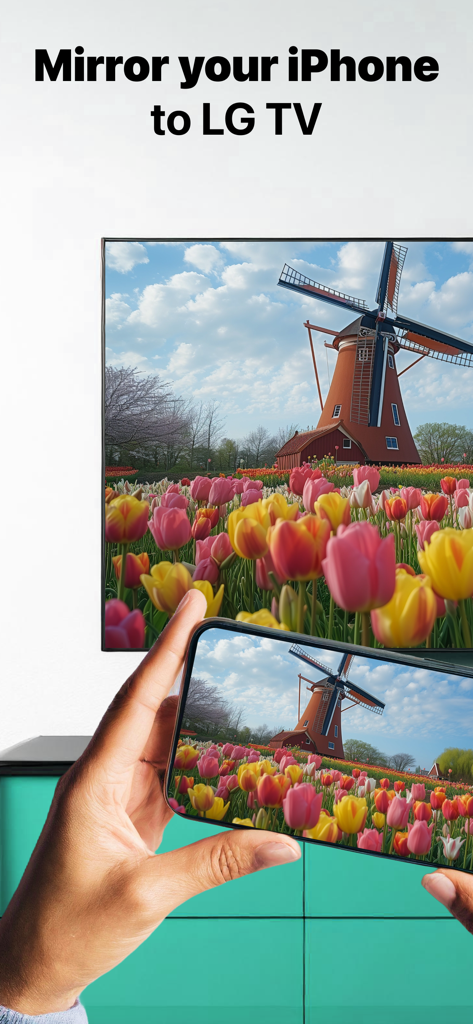
A person mirroring a photo of a windmill and tulips from an iPhone to an LG Smart TV.

A person mirroring a photo of a windmill and tulips from an iPhone to an LG Smart TV.

Person mirroring a colorful video from an iPhone to an LG Smart TV

Person mirroring a colorful video from an iPhone to an LG Smart TV

Woman watching a landscape video on an LG Smart TV with text saying Works with all LG TVs

Woman watching a landscape video on an LG Smart TV with text saying Works with all LG TVs

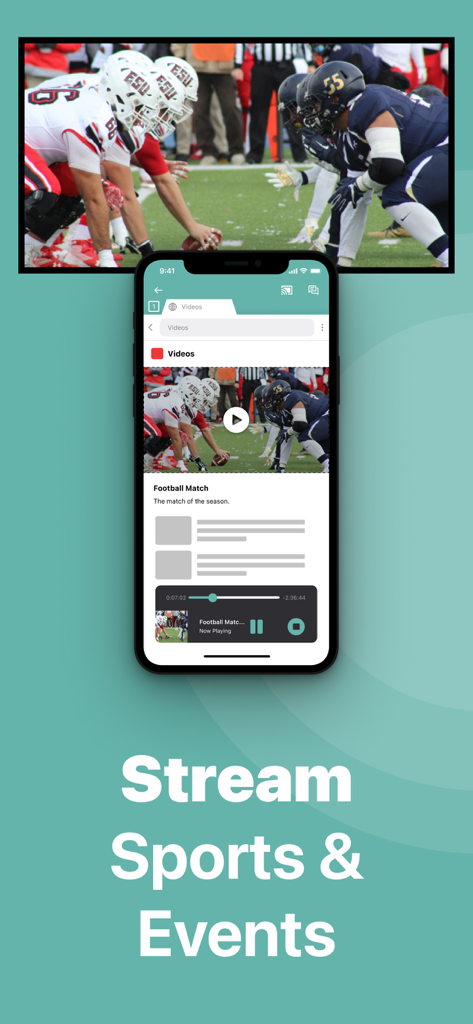
An iPhone screen mirroring a live football game to an LG Smart TV

An iPhone screen mirroring a live football game to an LG Smart TV

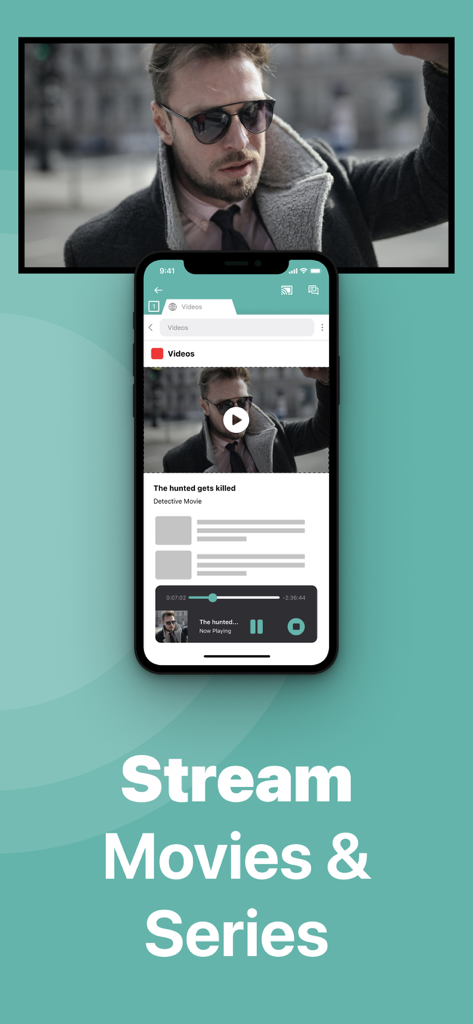
iPhone app mirroring a movie to a large LG TV screen

iPhone app mirroring a movie to a large LG TV screen

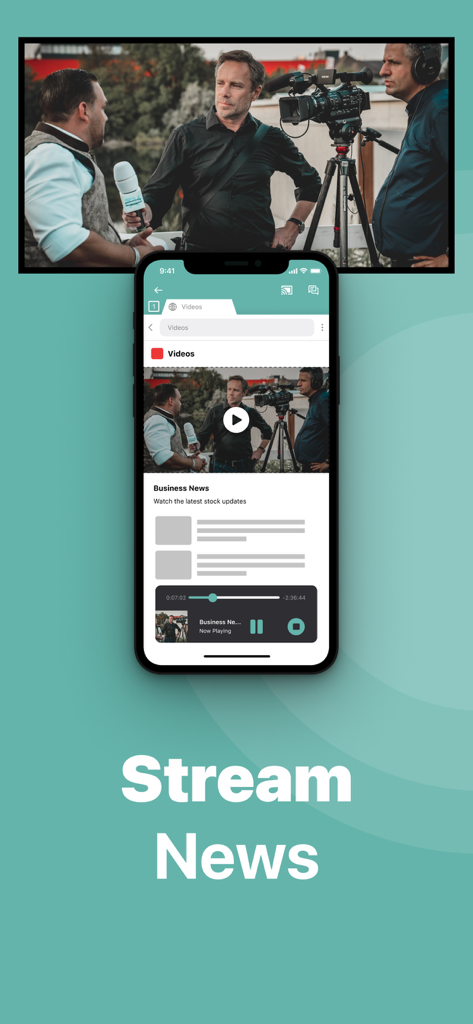
An iPhone screen mirroring a news broadcast video onto a large LG smart TV.

An iPhone screen mirroring a news broadcast video onto a large LG smart TV.

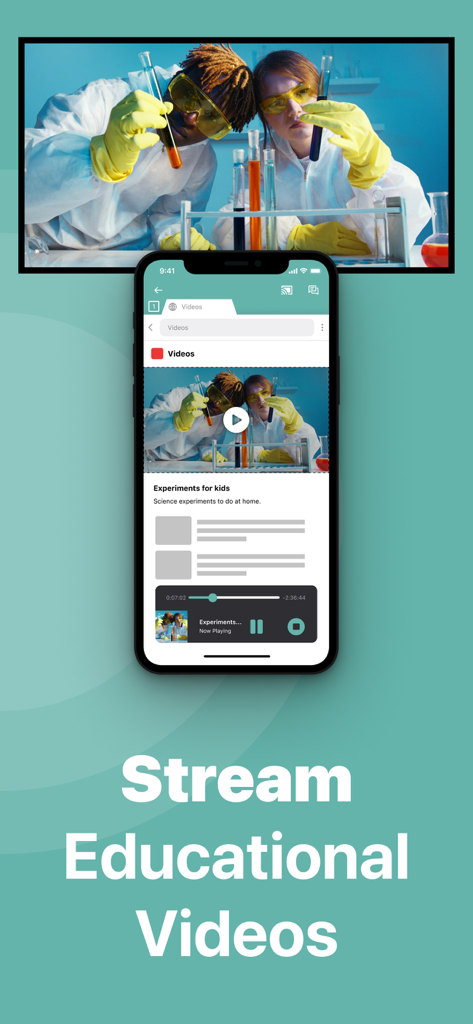
iPhone screen mirroring an educational video to an LG Smart TV

iPhone screen mirroring an educational video to an LG Smart TV

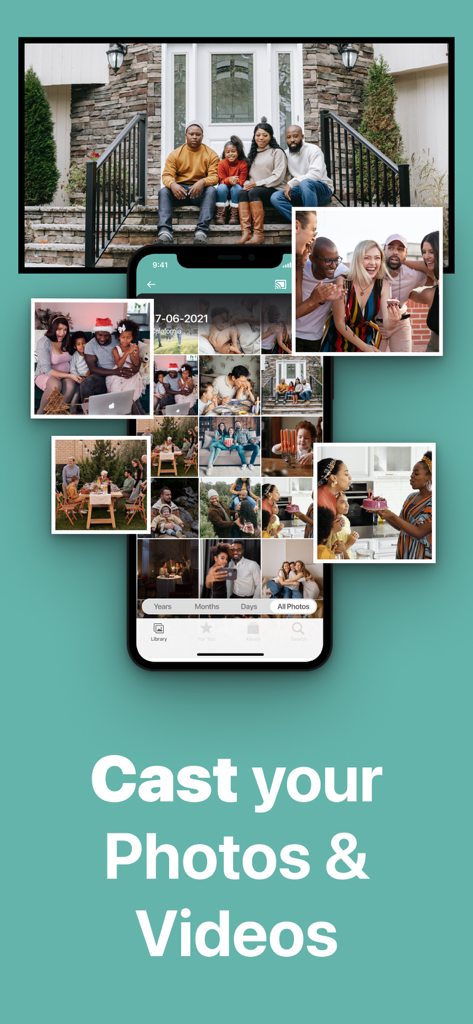
An iPhone casting a gallery of photos and videos to an LG Smart TV screen

An iPhone casting a gallery of photos and videos to an LG Smart TV screen

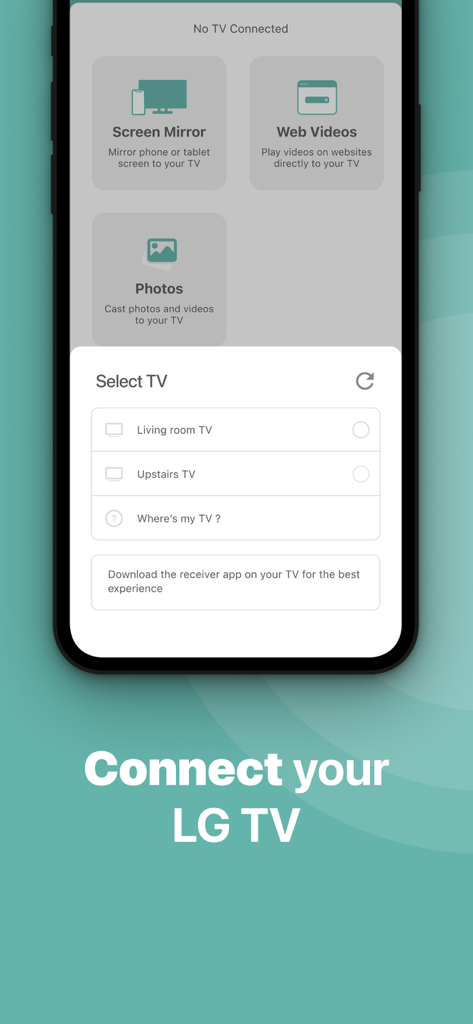
An iPhone app interface showing a list of available LG TVs to connect for screen mirroring.

An iPhone app interface showing a list of available LG TVs to connect for screen mirroring.

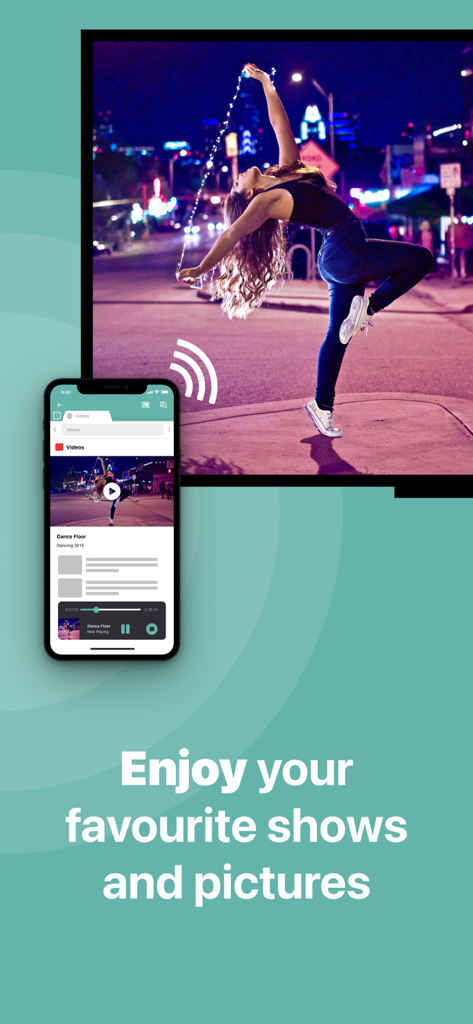
An iPhone mirroring a video of a woman dancing onto a large LG Smart TV screen.

An iPhone mirroring a video of a woman dancing onto a large LG Smart TV screen.

Experience Your Content on the Big Screen

The tools that make this app stand out, trusted by 1M+ users.

📲

Wireless Freedom

Ditch the expensive adapters and messy cables. Mirror your screen instantly over your existing home Wi-Fi network for a cleaner, modern setup.

🖼️

Share Your Memories

Relive your favorite moments by casting photos and home videos from your camera roll directly to the big screen for the whole family to enjoy.

💼

Work & Wellness Scaled

Perfect for hosting professional presentations or following along with fitness apps on a larger display for a more immersive and productive experience.

Loved by users worldwide

Trusted by 1M+ people who love this app.

"

"I have an older LG TV in my living room that doesn't support AirPlay, and I didn't want to buy an expensive Apple TV box just to share photos. This app is a lifesaver! It found my TV instantly, and now I can show our family vacation videos and photos on the big screen without any messy wires. It's so simple and works exactly as described."

Sarah Miller
"

"Perfect for my morning workout routines. I mirror my fitness app from my iPhone to the TV so I can actually see the instructors clearly while I'm moving. The setup was incredibly fast, and even with the slight latency, it's perfect for video and presentations. Upgrading to the Pro version for the audio and 1080p was well worth it!"

David Chen

About the app

Everything you need to know about LG TV Screen Mirroring Cast.

Description

Application to mirror the screen of your iPhone or iPad to any LG Smart TV. No wires and no additional hardware needed! You can mirror any app on your iPhone or iPad to your LG TV. This works on any LG Smart TV from the 2012 models onward. In using the app, there will be a couple of seconds of latency (usually between 1 and 3). So this mirroring is not suitable for gaming. However, it is very suitable for watching movies, giving presentations, watching photos, and much more! How the app works: 1. Make sure that your iPhone or iPad is connected to the same local network as your LG TV. Don't use multiple VLANs, a VPN or subnets. 2. Launch the Mirror for LG TV app. It will start looking for your LG TV(s) on your local network. When a TV is found, please select it. When you use this app for the first time, depending on your model LG TV, the TV might ask you to "allow" the connection. In that case, take your TV Remote Control and press OK to allow the connection from your TV to your iPhone or iPad. 3. Turn on notifications for this app. We will not spam you, but we will use this to let you know if your TV is working correctly or not. So please, please allow it, otherwise when things don't work as they should, you are left in the dark. 4. Click on Start Mirroring to start mirroring on the TV that is currently selected. After that, you can just go to any other app on your iPhone or iPad and the mirroring just continues to run. 5. To stop mirroring, there are two options. (1) click on the red top bar that you will see on your iPhone or iPad. (2) Go to the Mirror for LG TV app and click on Stop Mirroring. Limitations and known issues: DRM Some apps block Screen Mirroring. This means that application developers can choose themselves if they want to block Screen Mirroring. For instance, Netflix, Disney and AppleTV+ have decided to block this. There is a simple test that you can do to see if the app that you want to mirror has blocked Screen Mirroring: Open that particular app and slide up Control Center on your iPhone/iPad. Then, click on Screen Recording and start recording the screen to your Camera Roll. Watch the app that you want to mirror and at some point stop the screen recording. Then go to your Photos app and watch the video that was recorded. If the recorded video shows the app you want to mirror, it works fine. If the video is empty, then the app you want to mirror does not allow Screen Mirroring. About Screen Recording and Privacy Even though there are notifications about Screen Recording, we don't record your screen into files and we don't send any content to a server. We only temporarily store data in memory, before it is streamed to TV. Upon streaming, the content is removed from memory. You can purchase the Mirror for LG TV Pro Version through an in app purchase. The Pro Version has the following features: 1. Adds audio to the screen mirroring 2. Provides for free lifetime updates of the app 3. Gives the option to choose higher screen resolutions, like 720p and 1080p * Payment will be charged to iTunes Account at confirmation of purchase. * Subscription automatically renews unless auto-renew is turned off at least 24-hours before the end of the current period. * Account will be charged for renewal within 24-hours prior to the end of the current period, and identify the cost of the renewal. * Subscriptions may be managed by the user and auto-renewal may be turned off by going to the user’s Account Settings after purchase. * Any unused portion of a free trial period, if offered, will be forfeited when the user purchases a subscription to that publication, where applicable. Feel free to check: Our Terms of Use: http://bit.ly/ABTV-TOU21 Our Privacy Policy: https://www.airbeam.tv/privacy-policy/ Support: If you have questions or would like to provide feedback, please send us an e-mail on support@airbeam.tv

Latest Version

5.1.16

Size

148.9 MB

First Released

Oct 17, 2017

Ready to See the Big Picture?

Ditch the cables and expensive adapters. Join over 1 million users and start mirroring your iPhone or iPad to your LG TV today—no extra hardware required.

Download on App StoreDownload on Google Play
FAQ

Frequently Asked Questions

Everything you need to know about LG TV Screen Mirroring Cast

What is the LG TV Screen Mirroring Cast app?
LG TV Screen Mirroring Cast allows users to mirror their iPhone or iPad screen to any LG Smart TV without wires or additional hardware. It supports mirroring any app.

How do I connect my iPhone to an LG TV using Mirror for LG TV?

Connect your iPhone/iPad and LG TV to the same local network. Launch the Mirror for LG TV app, select your TV, and allow the connection on your TV using its remote.

Which LG Smart TVs are compatible with LG TV Screen Mirroring Cast?

The LG TV Screen Mirroring Cast app is compatible with all LG Smart TV models from 2012 onwards. It works with any LG TV from this generation.

Can LG TV Screen Mirroring Cast mirror content from Netflix or Disney+?

No, LG TV Screen Mirroring Cast cannot mirror content from apps like Netflix, Disney+, or AppleTV+. These applications block screen mirroring due to DRM restrictions.

Is the Mirror for LG TV app suitable for gaming?

No, the Mirror for LG TV app is not suitable for gaming. It has a latency of usually between 1 and 3 seconds, which impacts real-time interactions.

What types of content can I mirror with the LG TV Screen Mirroring Cast app?

The LG TV Screen Mirroring Cast app mirrors movies, presentations, photos, sports, events, news, and educational videos from your iPhone or iPad to your LG TV.

Does LG TV Screen Mirroring Cast record user screens?

No, LG TV Screen Mirroring Cast does not record your screen into files or send content to a server. It temporarily stores data in memory for streaming, then removes it.

What features does the Mirror for LG TV Pro Version include?

The Pro Version adds audio to mirroring, provides free lifetime updates, and offers higher screen resolutions like 720p and 1080p for enhanced viewing.

How do I stop screen mirroring with LG TV Screen Mirroring Cast?

You stop screen mirroring by clicking the red top bar on your iPhone/iPad or by opening the Mirror for LG TV app and selecting "Stop Mirroring."

Are wires or extra hardware needed for LG TV Screen Mirroring Cast?

No, the LG TV Screen Mirroring Cast app functions without any wires or additional hardware. It uses your existing local network connection between devices.

How do I get the Pro Version of Mirror for LG TV?

Users acquire the Pro Version of Mirror for LG TV through an in-app purchase within the application. This unlocks its advanced features.

How can I manage my LG TV Screen Mirroring Cast Pro subscription?

Users manage their Pro subscription and auto-renewal settings by visiting their Account Settings in iTunes after purchase. Subscriptions renew automatically.