Microsoft Authenticator

Microsoft Authenticator

Download on App StoreDownload on Google Play
Spark by MWM logo
Logo of Microsoft Authenticator

Microsoft Authenticator: Fast, Secure, and Frictionless Logins

Protect your work and personal accounts with one-tap MFA, passwordless sign-ins, and secure autofill. Simplify your digital life with the security you trust.

Publisher

Microsoft Corporation

Category

Productivity

Downloads

-

User Rating

4.7/5

Total Ratings

-

Locales

42

Security at a Glance

Discover the interface used by users.

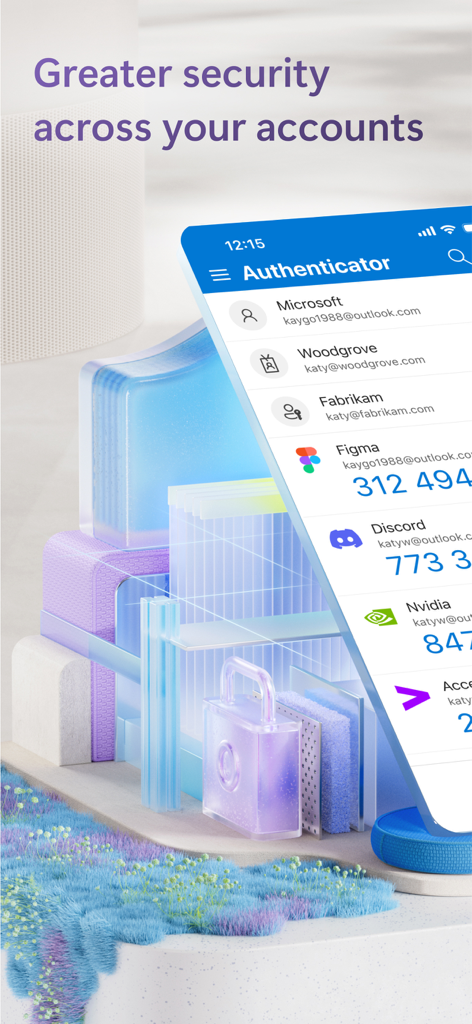
Microsoft Authenticator app interface displaying security codes for multiple accounts

Microsoft Authenticator app interface displaying security codes for multiple accounts

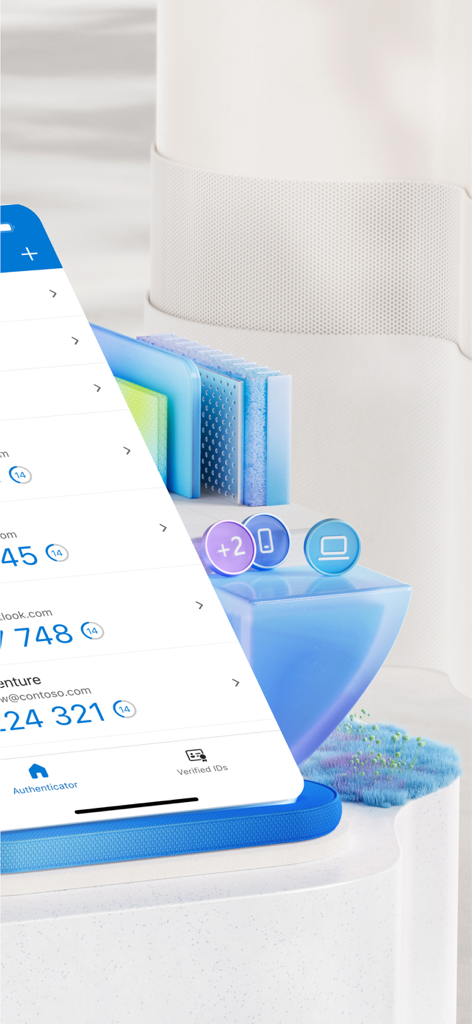
Microsoft Authenticator app interface displaying a list of one-time password codes for various accounts

Microsoft Authenticator app interface displaying a list of one-time password codes for various accounts

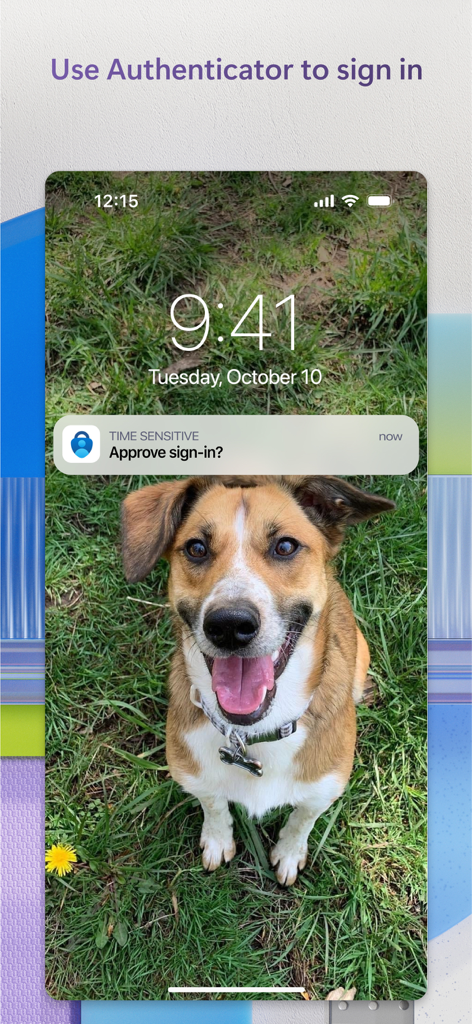
Microsoft Authenticator push notification on an iPhone lock screen asking to approve sign-in

Microsoft Authenticator push notification on an iPhone lock screen asking to approve sign-in

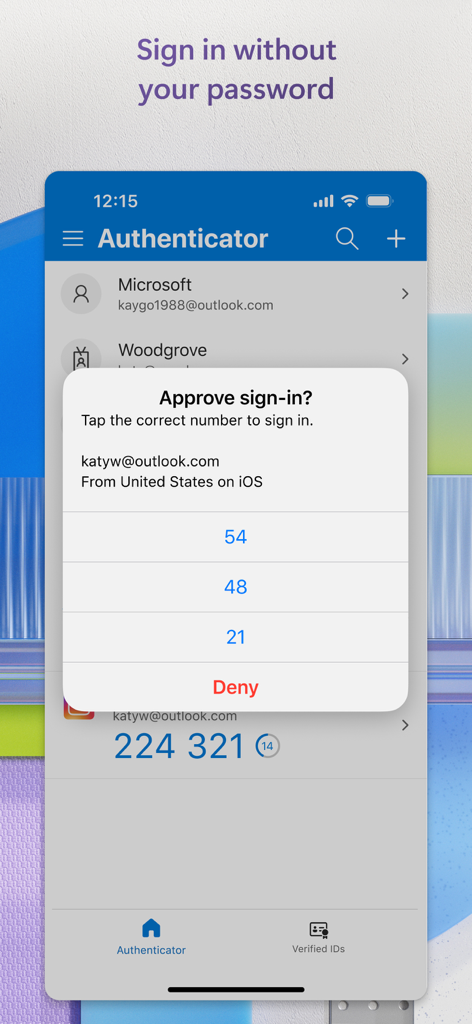
A mobile interface for Microsoft Authenticator showing a sign-in approval request with a number matching security prompt.

A mobile interface for Microsoft Authenticator showing a sign-in approval request with a number matching security prompt.

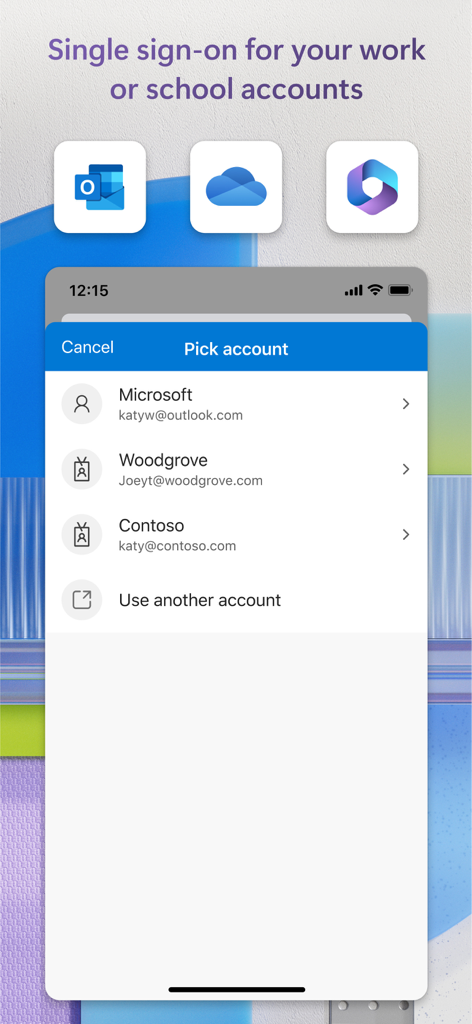
Microsoft Authenticator interface showing account selection for single sign-on with work and school accounts

Microsoft Authenticator interface showing account selection for single sign-on with work and school accounts

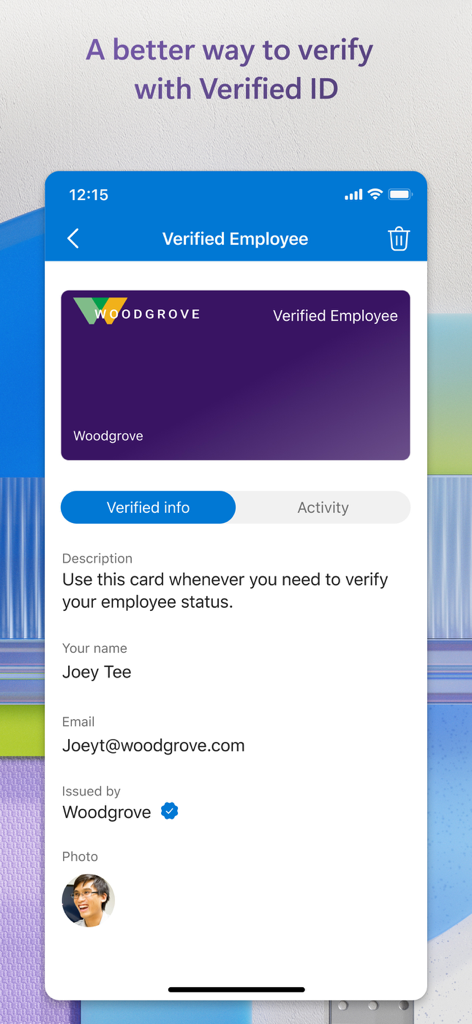
Digital employee ID card in Microsoft Authenticator app

Digital employee ID card in Microsoft Authenticator app

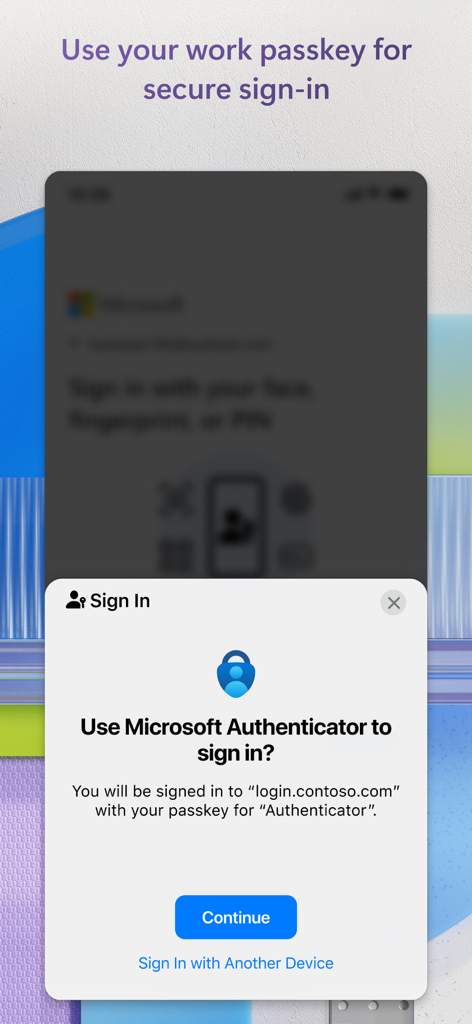
A mobile screen showing a sign-in prompt in the Microsoft Authenticator app to use a work passkey for secure access.

A mobile screen showing a sign-in prompt in the Microsoft Authenticator app to use a work passkey for secure access.

Bulletproof Security Made Simple

The tools that make this app stand out, trusted by users.

One-Tap Sign-In

Skip the manual codes. Authenticate instantly with a simple push notification using your fingerprint or FaceID.

🛡️

Go Passwordless

Experience the future of security by using your smartphone as your primary digital key—no more forgotten passwords.

🚀

Secure Autofill

Instantly sync and fill your credentials across all your mobile apps and browsers with enterprise-grade encryption.

Loved by users worldwide

Trusted by people who love this app.

"

"As a project manager constantly switching between work and personal accounts, this app is a lifesaver. The push notifications for one-tap approval save me so much time compared to typing in codes. It is the most seamless way to keep my data secure without adding friction to my workday."

Sarah J.
"

"I originally downloaded this for my university portal, but I have started using it for everything. The password autofill is incredibly reliable, and I love the peace of mind knowing my accounts are protected by FaceID. It has simplified my digital life significantly."

Marcus L.

Review Analysis

Insights from user reviews.

Sentiment Score

30%
Negative

Summary

The Microsoft Authenticator app receives overwhelmingly negative feedback, primarily due to significant usability issues. Users frequently encounter frustrating login loops, where the app requires verification from itself, and experience substantial difficulties when transferring accounts to new devices or recovering lost data, often leading to being locked out of essential services like Teams and email. A recurring complaint highlights the absence of robust account backup/restore and password export capabilities. However, some users commend the app for its general functionality, security, and occasional seamless migration during iPhone upgrades.

Common Themes

General App Performance(4)
Reliable Access(2)
Security & Speed(1)
Seamless Device Migration(1)
Core Functionality Focus(1)

About the app

Everything you need to know about Microsoft Authenticator.

Description

Use Microsoft Authenticator for easy, secure sign-ins for all your online accounts using multi-factor authentication, passwordless, or password autofill. You also have additional account management options for your Microsoft personal, work or school accounts. Getting started with multi-factor authentication Multi factor authentication (MFA)provides a second layer of security. When enabled, during login after entering your password, you’ll be asked for an additional way to prove it’s really you. Either approve the notification sent to the Microsoft Authenticator, or enter the one-time password (OTP) generated by the app. The OTP codes have a 30 second timer counting down. This timer is so you never have to use the same time-based one-time password (TOTP) twice and you don’t have to remember the number. The OTP doesn’t require you to be connected to a network, and it won’t drain your battery. You can add multiple accounts to your app, including non-Microsoft accounts like Facebook, Amazon, Dropbox, Google, LinkedIn, GitHub, and more. Getting started with passwordless Use your phone, not your password, to log into your Microsoft account. Just enter your username, then approve the notification sent to your phone. Your fingerprint, face ID, or PIN will provide a second layer of security in this two-step verification process. After you’ve signed in with two factor authentication (2FA), you’ll have access to all your Microsoft products and services, such as Outlook, OneDrive, Office, and more. Getting started with autofill Microsoft Authenticator app can also autofill passwords for you. Sign-in on the Passwords tab inside the Authenticator app with your personal Microsoft account to start syncing passwords, including the passwords saved in Microsoft Edge. Make Microsoft Authenticator the default autofill provider and start autofilling passwords on apps and sites you visit on your mobile. Your passwords are protected with multi-factor authentication in the app. You will need to prove yourself with your fingerprint, face ID, or PIN to access and autofill passwords on your mobile. You can also import passwords from Google Chrome and other password managers. Microsoft personal, work or school accounts Sometimes your work or school might ask you to install the Microsoft Authenticator when accessing certain organization resources. You will need to register your device to your organization through the app and add your work or school account. Microsoft Authenticator supports cert-based authentication by issuing a certificate on your device. This will let your organization know that the sign-in request is coming from a trusted device and help you seamlessly and securely access additional Microsoft apps and services without needing to log into each.

Latest Version

6.8.40

Size

139.6 MB

First Released

May 30, 2015

Secure Your World in a Single Tap

Join millions of professionals and students simplifying their digital life with passwordless sign-ins and secure autofill for all your personal and work accounts.

Download on App StoreDownload on Google Play
FAQ

Frequently Asked Questions

Everything you need to know about Microsoft Authenticator

What is Microsoft Authenticator used for?

Microsoft Authenticator provides easy, secure sign-ins for online accounts using multi-factor authentication, passwordless options, or password autofill. It also offers account management for Microsoft personal, work, or school accounts.

Does Microsoft Authenticator support multi-factor authentication?

Yes, Microsoft Authenticator provides multi-factor authentication (MFA). It offers a second layer of security by requiring approval of a notification or entry of a one-time password (OTP) generated by the app after entering your password.

How does multi-factor authentication work with Microsoft Authenticator?

Multi-factor authentication in Microsoft Authenticator works by sending a notification for approval or generating a time-based one-time password (OTP). Users either approve the notification or enter the OTP, which has a 30-second timer.

Can I use Microsoft Authenticator for non-Microsoft accounts?

Yes, Microsoft Authenticator supports adding multiple accounts, including non-Microsoft accounts. Examples include Facebook, Amazon, Dropbox, Google, LinkedIn, and GitHub.

Does Microsoft Authenticator offer passwordless sign-in?

Yes, Microsoft Authenticator enables passwordless sign-in for Microsoft accounts. Users enter their username, then approve a notification on their phone using fingerprint, Face ID, or PIN for verification.

How does passwordless sign-in work with Microsoft Authenticator?

Passwordless sign-in with Microsoft Authenticator requires entering a username for a Microsoft account. The app sends a notification to the phone, which the user approves using fingerprint, Face ID, or PIN for a second layer of security.

Can Microsoft Authenticator autofill passwords?

Yes, Microsoft Authenticator can autofill passwords. Users sign in to the Passwords tab with their personal Microsoft account to sync passwords, including those from Microsoft Edge, and can set it as the default autofill provider.

Is password autofill in Microsoft Authenticator secure?

Yes, password autofill in Microsoft Authenticator is secure. Passwords are protected with multi-factor authentication, requiring fingerprint, Face ID, or PIN verification to access and autofill them on mobile devices.

Can I import passwords into Microsoft Authenticator?

Yes, Microsoft Authenticator allows users to import passwords. It supports importing passwords from Google Chrome and other password managers.

How does Microsoft Authenticator support work or school accounts?

Microsoft Authenticator supports work or school accounts by allowing device registration for organizational resources. It provides cert-based authentication, ensuring seamless and secure access to Microsoft apps and services without needing separate logins.

Does the Microsoft Authenticator app drain battery or require a network connection for OTPs?

No, the Microsoft Authenticator app does not drain battery or require a network connection for its one-time password (OTP) feature. The OTP codes are time-based and function offline.