Microsoft Authenticator

Microsoft Authenticator

ダウンロード: App Storeダウンロード: Google Play
Spark by MWM logo
ロゴ: Microsoft Authenticator

Microsoft Authenticator: 高速、安全、そしてスムーズなログイン

ワンタップMFA、パスワード不要のサインイン、安全な自動入力で仕事用および個人用アカウントを保護します。信頼できるセキュリティでデジタルライフを簡素化します。

ダウンロード: App Store

開発元

Microsoft Corporation

カテゴリ

Productivity

ダウンロード

-

ユーザー評価

4.7/5

評価数

-

対応言語

42

一目でわかるセキュリティ

このインターフェースを利用する 人のユーザー.

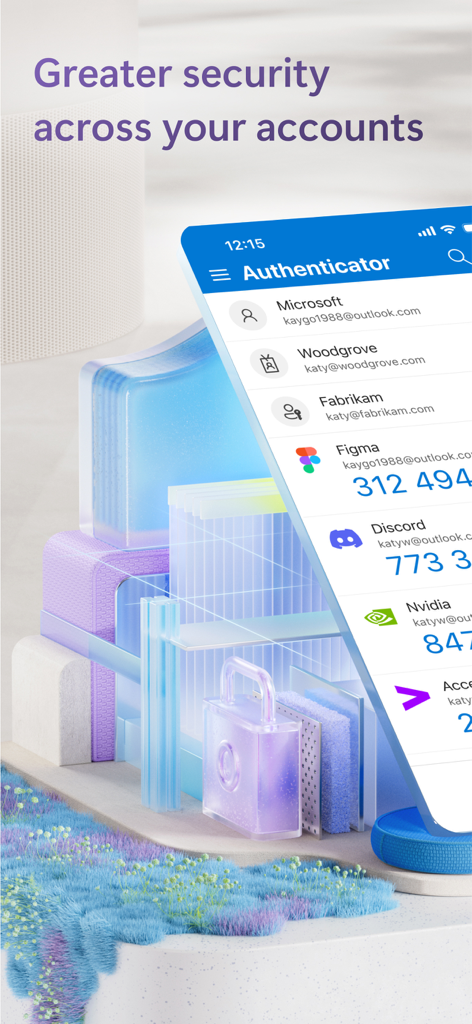
Microsoft Authenticatorアプリのインターフェースに、複数のアカウントのセキュリティコードが表示されています。

Microsoft Authenticatorアプリのインターフェースに、複数のアカウントのセキュリティコードが表示されています。

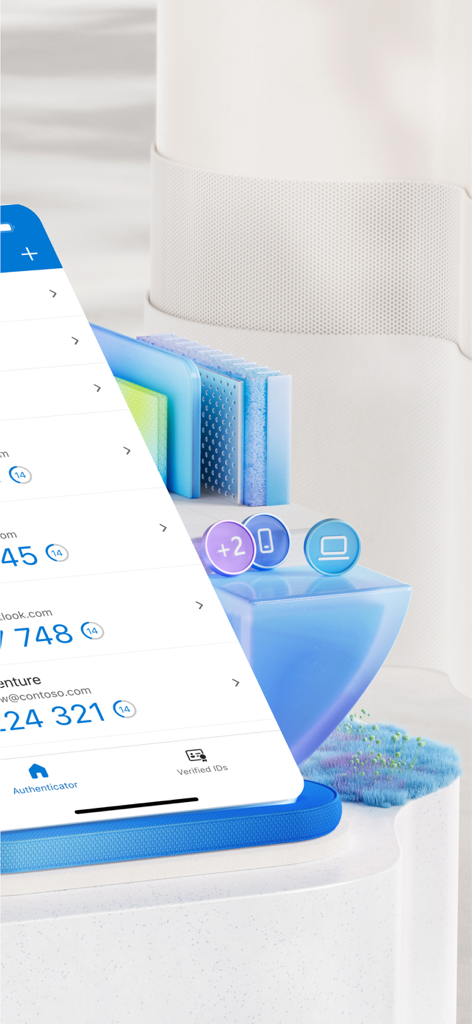
Microsoft Authenticatorアプリのインターフェースに、さまざまなアカウントのワンタイムパスワードコードのリストが表示されています。

Microsoft Authenticatorアプリのインターフェースに、さまざまなアカウントのワンタイムパスワードコードのリストが表示されています。

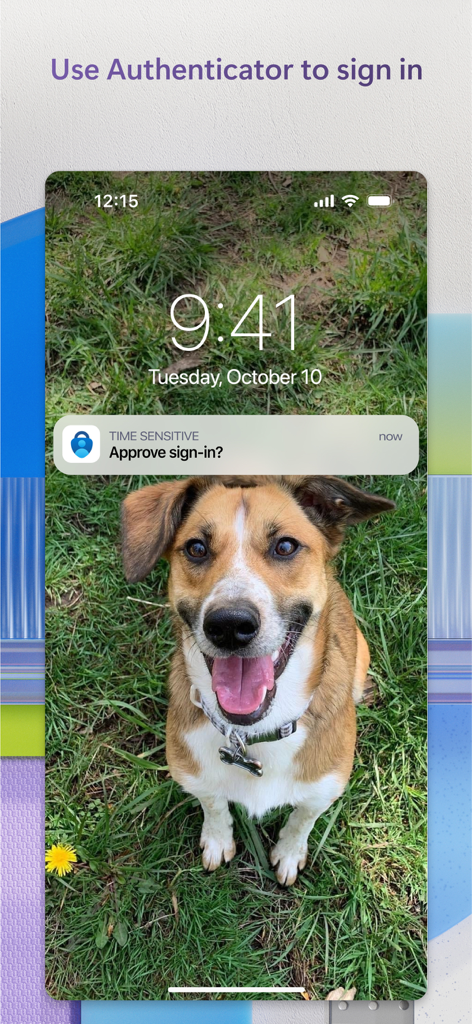
iPhoneのロック画面に表示されるMicrosoft Authenticatorのプッシュ通知で、サインインの承認を求めています。

iPhoneのロック画面に表示されるMicrosoft Authenticatorのプッシュ通知で、サインインの承認を求めています。

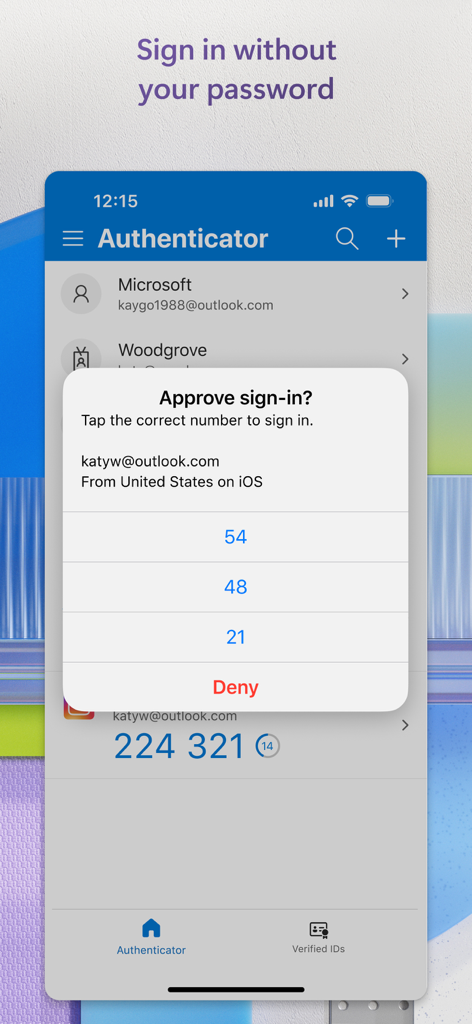
Microsoft Authenticatorのモバイルインターフェースに、セキュリティプロンプトと一致する数字が表示されたサインイン承認リクエストが表示されています。

Microsoft Authenticatorのモバイルインターフェースに、セキュリティプロンプトと一致する数字が表示されたサインイン承認リクエストが表示されています。

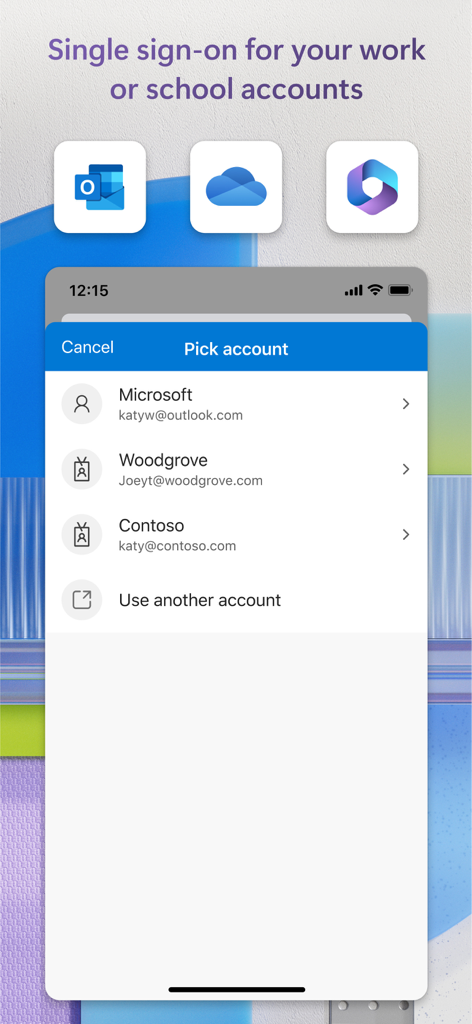
Microsoft Authenticatorのインターフェースに、仕事用および学校用アカウントでのシングルサインオンのためのアカウント選択が表示されています。

Microsoft Authenticatorのインターフェースに、仕事用および学校用アカウントでのシングルサインオンのためのアカウント選択が表示されています。

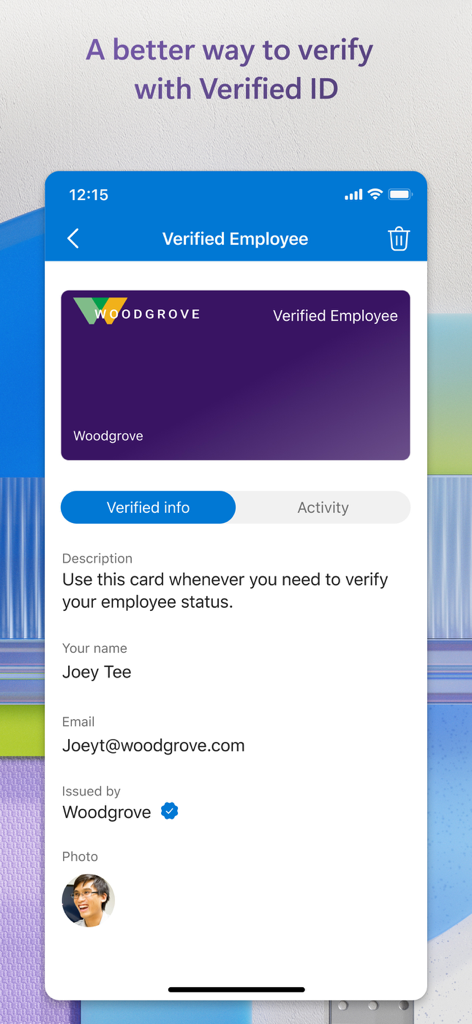
Microsoft Authenticatorアプリ内のデジタル従業員IDカード。

Microsoft Authenticatorアプリ内のデジタル従業員IDカード。

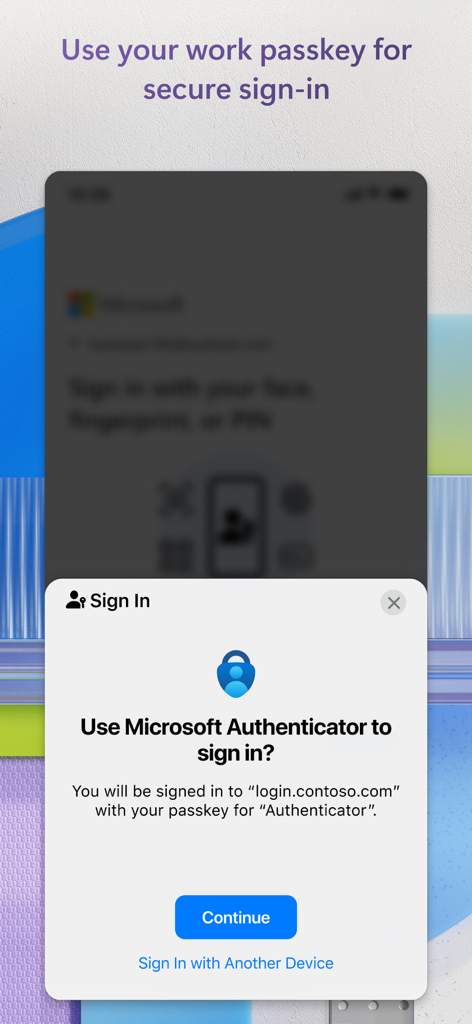
Microsoft Authenticatorアプリで、仕事用パスキーを使用して安全にアクセスするためのサインインプロンプトが表示されているモバイル画面。

Microsoft Authenticatorアプリで、仕事用パスキーを使用して安全にアクセスするためのサインインプロンプトが表示されているモバイル画面。

簡潔な鉄壁のセキュリティ

このアプリを際立たせるツール、 人のユーザーが選択.

ワンタップサインイン

手動コードは不要です。指紋またはFaceIDを使用して、プッシュ通知で即座に認証します。

🛡️

パスワードレスへ

スマートフォンを主要なデジタルキーとして使用することで、セキュリティの未来を体験してください。もうパスワードを忘れることはありません。

🚀

安全な自動入力

エンタープライズグレードの暗号化で、すべてのモバイルアプリとブラウザ間で認証情報を即座に同期および入力します。

世界中のユーザーに愛されています

Trusted by 人がこのアプリを愛用しています.

"

"仕事用と個人用のアカウントを頻繁に切り替えるプロジェクトマネージャーとして、このアプリは救世主です。ワンタップ承認のためのプッシュ通知は、コードを入力するよりもはるかに時間を節約してくれます。仕事の日に摩擦を加えることなく、データを安全に保つための最もシームレスな方法です。"

Sarah J.
"

"大学のポータル用に最初にダウンロードしましたが、すべてに使用するようになりました。パスワードの自動入力は信じられないほど信頼性が高く、FaceIDでアカウントが保護されているという安心感が大好きです。私のデジタルライフを大幅に簡素化してくれました。"

Marcus L.

レビュー分析

ユーザーレビューの分析.

感情スコア

30%
ネガティブ

概要

The Microsoft Authenticator app receives overwhelmingly negative feedback, primarily due to significant usability issues. Users frequently encounter frustrating login loops, where the app requires verification from itself, and experience substantial difficulties when transferring accounts to new devices or recovering lost data, often leading to being locked out of essential services like Teams and email. A recurring complaint highlights the absence of robust account backup/restore and password export capabilities. However, some users commend the app for its general functionality, security, and occasional seamless migration during iPhone upgrades.

主なテーマ

General App Performance(4)
Reliable Access(2)
Security & Speed(1)
Seamless Device Migration(1)
Core Functionality Focus(1)

アプリについて

について知っておくべきこと Microsoft Authenticator.

説明

Use Microsoft Authenticator for easy, secure sign-ins for all your online accounts using multi-factor authentication, passwordless, or password autofill. You also have additional account management options for your Microsoft personal, work or school accounts. Getting started with multi-factor authentication Multi factor authentication (MFA)provides a second layer of security. When enabled, during login after entering your password, you’ll be asked for an additional way to prove it’s really you. Either approve the notification sent to the Microsoft Authenticator, or enter the one-time password (OTP) generated by the app. The OTP codes have a 30 second timer counting down. This timer is so you never have to use the same time-based one-time password (TOTP) twice and you don’t have to remember the number. The OTP doesn’t require you to be connected to a network, and it won’t drain your battery. You can add multiple accounts to your app, including non-Microsoft accounts like Facebook, Amazon, Dropbox, Google, LinkedIn, GitHub, and more. Getting started with passwordless Use your phone, not your password, to log into your Microsoft account. Just enter your username, then approve the notification sent to your phone. Your fingerprint, face ID, or PIN will provide a second layer of security in this two-step verification process. After you’ve signed in with two factor authentication (2FA), you’ll have access to all your Microsoft products and services, such as Outlook, OneDrive, Office, and more. Getting started with autofill Microsoft Authenticator app can also autofill passwords for you. Sign-in on the Passwords tab inside the Authenticator app with your personal Microsoft account to start syncing passwords, including the passwords saved in Microsoft Edge. Make Microsoft Authenticator the default autofill provider and start autofilling passwords on apps and sites you visit on your mobile. Your passwords are protected with multi-factor authentication in the app. You will need to prove yourself with your fingerprint, face ID, or PIN to access and autofill passwords on your mobile. You can also import passwords from Google Chrome and other password managers. Microsoft personal, work or school accounts Sometimes your work or school might ask you to install the Microsoft Authenticator when accessing certain organization resources. You will need to register your device to your organization through the app and add your work or school account. Microsoft Authenticator supports cert-based authentication by issuing a certificate on your device. This will let your organization know that the sign-in request is coming from a trusted device and help you seamlessly and securely access additional Microsoft apps and services without needing to log into each.

最新バージョン

6.8.40

サイズ

139.6 MB

リリース日

2015年5月30日

ワンタップであなたの世界を安全に

パスワード不要のサインインと安全な自動入力で、仕事用および個人用アカウントのデジタルライフを簡素化している何百万人ものプロフェッショナルや学生に加わりましょう。

ダウンロード: App Storeダウンロード: Google Play
FAQ

よくある質問

について知っておくべきこと Microsoft Authenticator

Microsoft Authenticatorは何に使用されますか?

Microsoft Authenticatorは、多要素認証、パスワードレスオプション、またはパスワードの自動入力を使用して、オンラインアカウントへの簡単なセキュアなサインインを提供します。また、Microsoftの個人用、職場用、または学校用アカウントの管理も提供します。

Microsoft Authenticatorは多要素認証をサポートしていますか?

はい、Microsoft Authenticatorは多要素認証(MFA)を提供します。パスワードを入力した後、アプリによって生成された通知の承認またはワンタイムパスワード(OTP)の入力が必要になり、セキュリティの第2層を提供します。

Microsoft Authenticatorでの多要素認証はどのように機能しますか?

Microsoft Authenticatorでの多要素認証は、承認のための通知を送信するか、時間ベースのワンタイムパスワード(OTP)を生成することによって機能します。ユーザーは通知を承認するか、30秒のタイマーを持つOTPを入力します。

Microsoft AuthenticatorをMicrosoft以外の В comptes に使用できますか?

はい、Microsoft Authenticatorは、Facebook、Amazon、Dropbox、Google、LinkedIn、GitHubなどのMicrosoft以外の В comptes を含む複数の В comptes の追加をサポートしています。

Microsoft Authenticatorはパスワードレスサインインを提供していますか?

はい、Microsoft AuthenticatorはMicrosoft В comptes のパスワードレスサインインを可能にします。ユーザーはユーザー名を入力し、その後、指紋、Face ID、またはPINを使用して電話で通知を承認して検証します。

Microsoft Authenticatorでのパスワードレスサインインはどのように機能しますか?

Microsoft Authenticatorでのパスワードレスサインインでは、Microsoft В comptes のユーザー名を入力する必要があります。アプリは電話に通知を送信し、ユーザーは指紋、Face ID、またはPINを使用して承認し、セキュリティの第2層を提供します。

Microsoft Authenticatorはパスワードを自動入力できますか?

はい、Microsoft Authenticatorはパスワードを自動入力できます。ユーザーは、Microsoft Edgeからのパスワードを含むパスワードを同期するために、個人用Microsoft В comptes でパスワードタブにサインインし、それをデフォルトの自動入力プロバイダーとして設定できます。

Microsoft Authenticatorのパスワード自動入力は安全ですか?

はい、Microsoft Authenticatorのパスワード自動入力は安全です。パスワードは多要素認証で保護されており、モバイルデバイスでのアクセスと自動入力には指紋、Face ID、またはPINの検証が必要です。

Microsoft Authenticatorにパスワードをインポートできますか?

はい、Microsoft Authenticatorではパスワードのインポートが可能です。Google Chromeやその他のパスワードマネージャーからのパスワードのインポートをサポートしています。

Microsoft Authenticatorは職場または学校 В comptes をどのようにサポートしていますか?

Microsoft Authenticatorは、組織のリソースのデバイス登録を可能にすることで、職場または学校 В comptes をサポートします。証明書ベースの認証を提供し、個別のログインを必要とせずにMicrosoftアプリやサービスへのシームレスで安全なアクセスを保証します。

Microsoft Authenticatorアプリはバッテリーを消費したり、OTPにネットワーク接続を必要としたりしますか?

いいえ、Microsoft Authenticatorアプリはバッテリーを消費したり、ワンタイムパスワード(OTP)機能のためにネットワーク接続を必要としたりしません。OTPコードは時間ベースであり、オフラインで機能します。