Screen Mirroring Panasonic TV

Screen Mirroring Panasonic TV

Herunterladen auf App StoreHerunterladen auf Google Play
Spark by MWM logo
Logo von Screen Mirroring Panasonic TV

Bildschirmspiegelung Panasonic TV: Der einfache Weg, Ihren iPhone-Bildschirm zu teilen

Keine Kabel, keine zusätzliche Hardware und kein Kabelsalat. Spiegeln Sie Filme, Fotos und Präsentationen von Ihren Apple-Geräten sofort direkt auf Ihren Panasonic Smart TV.

Herausgeber

AirBeamTV BV

Kategorie

Photo & Video

Downloads

637K+

Bewertung

4.1/5

Bewertungen gesamt

10K+

Sprachen

17

Erleben Sie die Ansicht

Entdecken Sie die Oberfläche, die von 637K+ Nutzern verwendet wird.
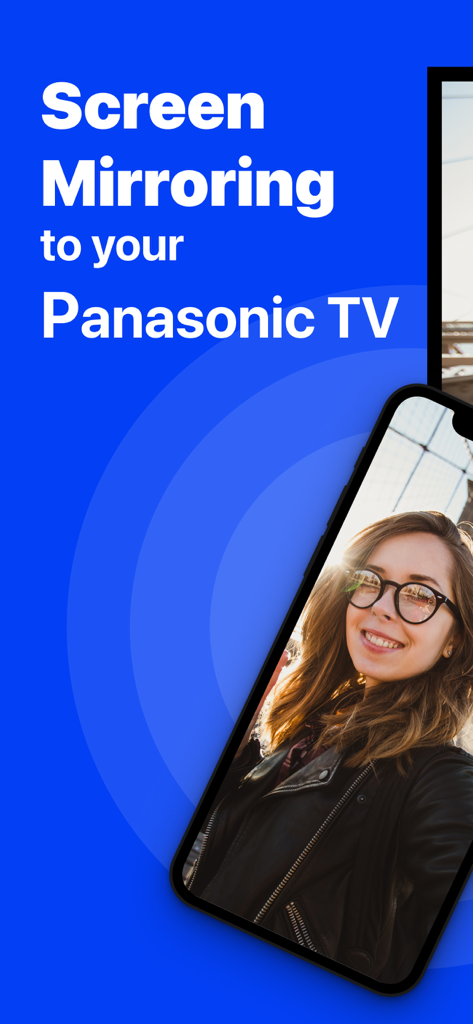
iPhone-Bildschirm spiegelt ein Selfie auf einen Panasonic TV

iPhone-Bildschirm spiegelt ein Selfie auf einen Panasonic TV

Ein Smartphone-Bildschirm spiegelt kabellos ein Webvideo auf einen großen Panasonic Fernsehbildschirm.

Ein Smartphone-Bildschirm spiegelt kabellos ein Webvideo auf einen großen Panasonic Fernsehbildschirm.

Fotos und Videos vom iPhone auf Panasonic Smart TV übertragen

Fotos und Videos vom iPhone auf Panasonic Smart TV übertragen

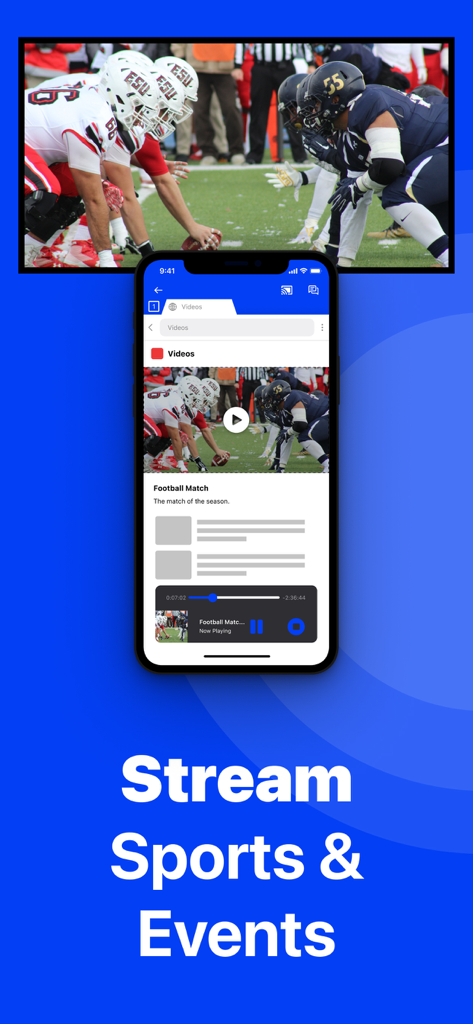
iPhone spiegelt ein Fußballspiel kabellos auf einen Panasonic Smart TV

iPhone spiegelt ein Fußballspiel kabellos auf einen Panasonic Smart TV

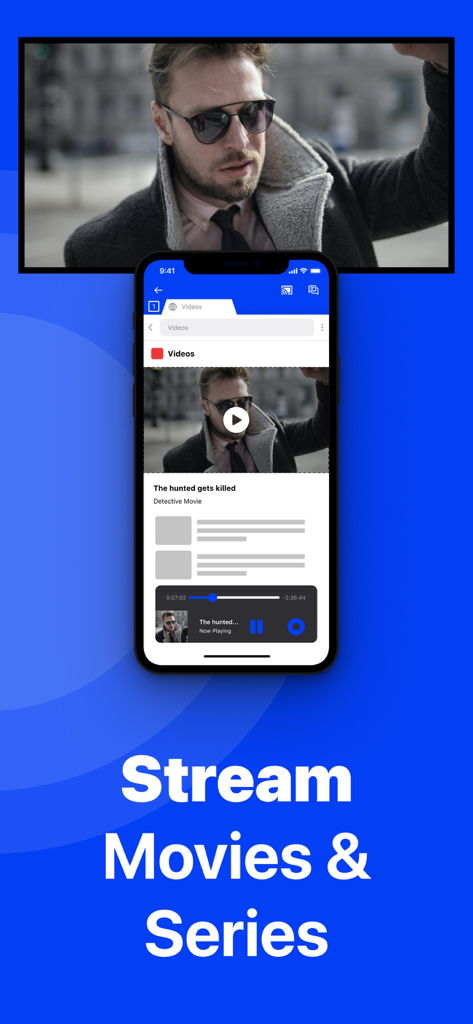
iPhone-Bildschirm spiegelt einen Film kabellos auf einen Panasonic Smart TV

iPhone-Bildschirm spiegelt einen Film kabellos auf einen Panasonic Smart TV

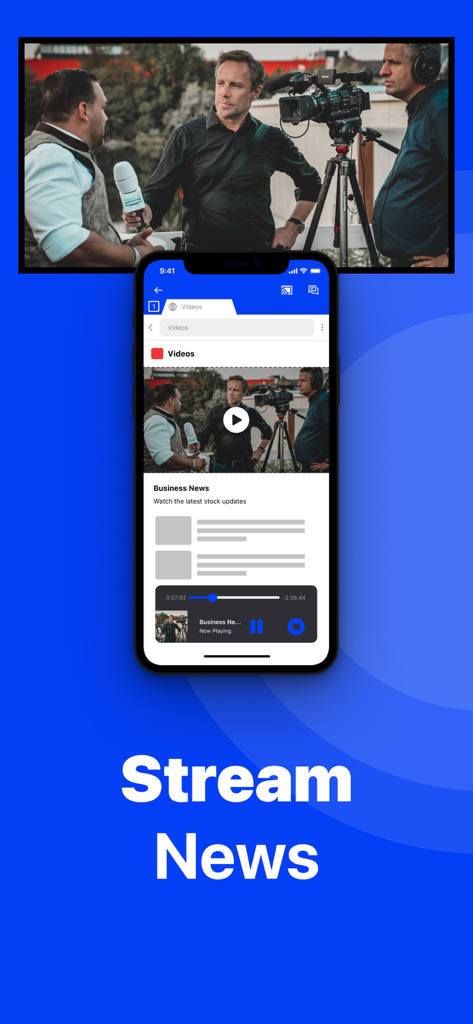
Ein iPhone spiegelt eine Nachrichtensendung auf einen Panasonic Smart TV-Bildschirm

Ein iPhone spiegelt eine Nachrichtensendung auf einen Panasonic Smart TV-Bildschirm

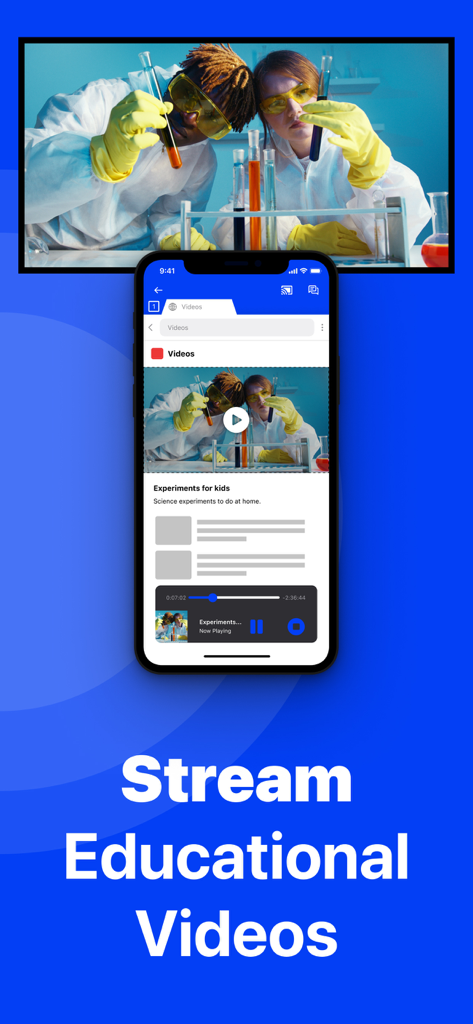
iPhone spiegelt ein wissenschaftliches Lehrvideo auf einen Panasonic Smart TV

iPhone spiegelt ein wissenschaftliches Lehrvideo auf einen Panasonic Smart TV

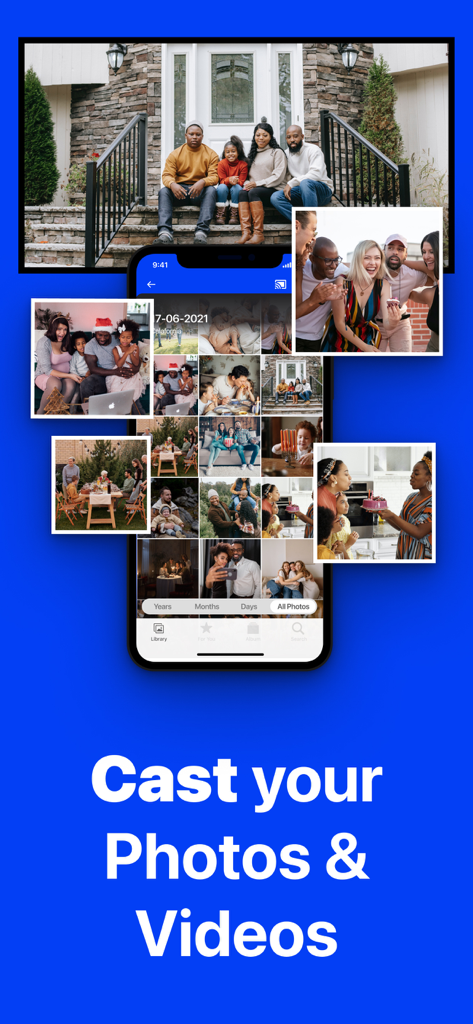
Ein iPhone spiegelt eine Fotogalerie auf einen großen Panasonic TV-Bildschirm, der ein Familienporträt zeigt.

Ein iPhone spiegelt eine Fotogalerie auf einen großen Panasonic TV-Bildschirm, der ein Familienporträt zeigt.

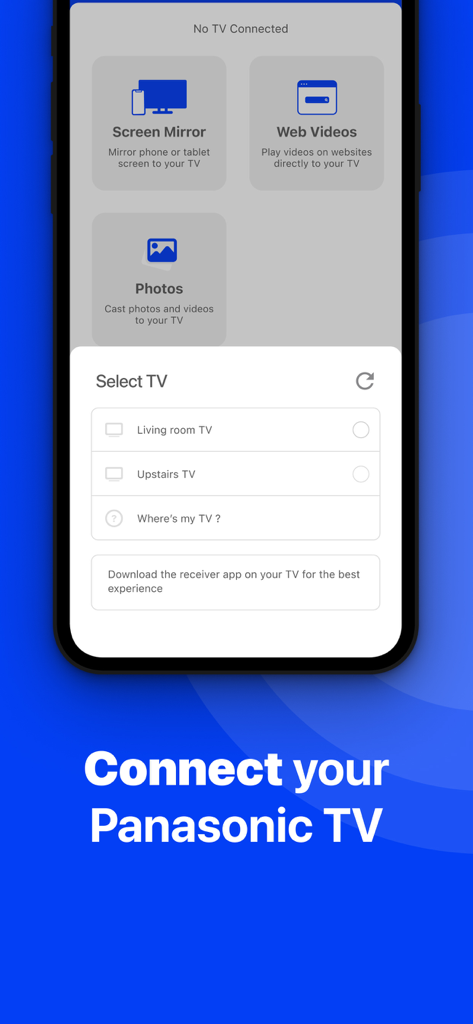
App-Oberfläche zeigt ein Menü zur Auswahl eines Panasonic TV für die kabellose Bildschirmspiegelung von einem iPhone

App-Oberfläche zeigt ein Menü zur Auswahl eines Panasonic TV für die kabellose Bildschirmspiegelung von einem iPhone

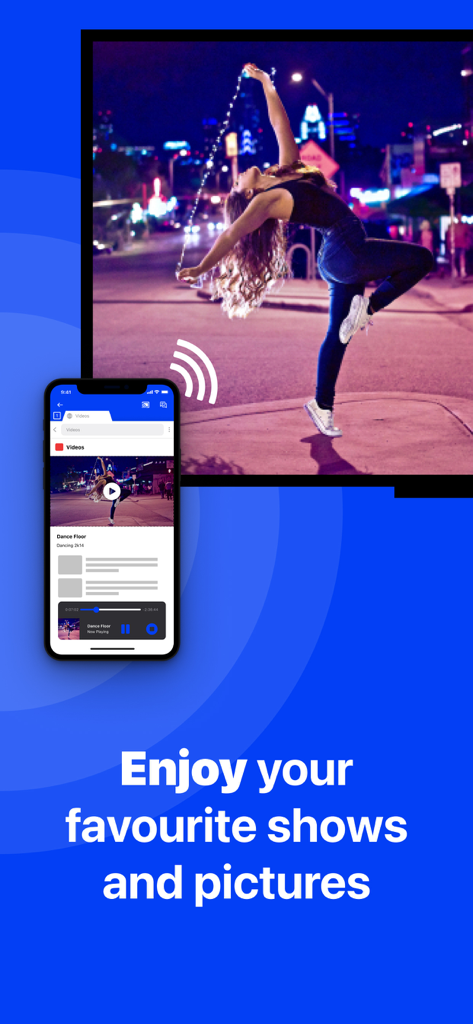
iPhone-Bildschirm spiegelt ein Tanzvideo kabellos auf einen Panasonic Smart TV

iPhone-Bildschirm spiegelt ein Tanzvideo kabellos auf einen Panasonic Smart TV

Nutzen Sie das volle Potenzial Ihres Panasonic TV

Die Tools, die diese App auszeichnen, gewählt von 637K+ Nutzern.

🔌

Wirklich kabellose Verbindung

Sparen Sie Geld für teure Adapter. Spiegeln Sie Ihren iPhone- oder iPad-Bildschirm sofort nur über Ihr Heim-WLAN.

📸

Gemeinsame Familienmomente

Der einfachste Weg, Fotos und Videos einer Gruppe zu zeigen. Perfekt für Feiertagszusammenkünfte und das Teilen von Erinnerungen mit Ihren Lieben.

📈

Produktivität & Wohlbefinden

Erweitern Sie Ihre Ansicht. Spiegeln Sie Fitness-Apps für Heimtraining oder Präsentationen für Geschäftstreffen direkt auf Ihren Fernseher.

Weltweit von Nutzern geliebt

Vertraut von 637K+ Menschen, die diese App lieben.

"

"Ich wollte meinen Eltern unsere Urlaubsfotos auf unserem Panasonic Fernseher im Wohnzimmer zeigen, aber ich wollte dafür keine teure Apple TV Box kaufen. Diese App hat perfekt funktioniert! Die Einrichtung war so einfach, und die Gesichter der Kinder ohne Kabelsalat auf dem großen Bildschirm zu sehen, war ein großer Vorteil."

Sarah M.
"

"Ich nutze dies jeden Morgen, um meine Workout-App von meinem iPad auf den Fernseher zu spiegeln. Es ist viel besser, als auf einen kleinen Bildschirm zu starren. Ich habe auf die Pro-Version für die Audio- und 1080p-Qualität aufgerüstet, und es war jeden Cent wert. Ein großartiger kabelloser 'Hack' für ältere Panasonic-Modelle, die kein natives AirPlay haben."

David R.

Über die App

Alles, was Sie über wissen müssen Screen Mirroring Panasonic TV.

Beschreibung

The best screen mirroring app for Panasonic TV! Application to mirror the screen of your iPhone or iPad to any Panasonic Smart TV. No wires and no additional hardware needed! You can mirror any app on your iPhone or iPad to your Panasonic TV. Please enable DMR (Digital Media Renderer) in TV Settings: WIth your remote control, go to: Menu / Setup / Network / Application / DMR: ON This works on any Panasonic Smart TV from the 2012 models onward. For the latest Panasonic TV models, please enable DMR (Digital Media Renderer) in TV Settings: WIth your remote control, go to: Menu / Setup / Network / Application / DMR: ON In using the app, there will be a couple of seconds of latency (usually between 1 and 3). However, it is very suitable for watching movies, giving presentations, watching photos, and much more! How the app works: 1. Make sure that your iPhone or iPad is connected to the same local network as your Panasonic TV. 2. Launch the Mirror for Panasonic TV app. It will start looking for your Panasonic TV(s) on your local network. When a TV is found, please select it. When you use this app for the first time, depending on your model Panasonic TV, the TV might ask you to "allow" the connection. In that case, take your TV Remote Control and press OK to allow the connection from your TV to your iPhone or iPad. 3. Turn on notifications for this app. We will not spam you, but we will use this to let you know if your TV is working correctly or not. So please, please allow it, otherwise when things don't work as they should, you are left in the dark. 4. Click on Start Mirroring to start mirroring on the TV that is currently selected. After that, you can just go to any other app on your iPhone or iPad and the mirroring just continues to run. 5. To stop mirroring, there are two options. (1) click on the red top bar that you will see on your iPhone or iPad. (2) Go to the Mirror for Panasonic TV app and click on Stop Mirroring. Limitations and known issues: DRM Some apps block Screen Mirroring. This means that application developers can choose themselves if they want to block Screen Mirroring. For instance, Netflix, Disney and AppleTV+ have decided to block this. There is a simple test that you can do to see if the app that you want to mirror has blocked Screen Mirroring: Open that particular app and slide up Control Center on your iPhone/iPad. Then, click on Screen Recording and start recording the screen to your Camera Roll. Watch the app that you want to mirror and at some point stop the screen recording. Then go to your Photos app and watch the video that was recorded. If the recorded video shows the app you want to mirror, it works fine. If the video is empty, then the app you want to mirror does not allow Screen Mirroring. You can purchase the Mirror for Panasonic TV Pro Version through an in app purchase. The Pro Version has the following features: 1. Adds audio to the screen mirroring 2. Provides for free lifetime updates of the app 3. Gives the option to choose higher screen resolutions, like 720p and 1080p * Payment will be charged to iTunes Account at confirmation of purchase. * Subscription automatically renews unless auto-renew is turned off at least 24-hours before the end of the current period. * Account will be charged for renewal within 24-hours prior to the end of the current period, and identify the cost of the renewal. * Subscriptions may be managed by the user and auto-renewal may be turned off by going to the user’s Account Settings after purchase. * Any unused portion of a free trial period, if offered, will be forfeited when the user purchases a subscription to that publication, where applicable. Our Terms of Use: http://bit.ly/ABTV-TOU21 Our Privacy Policy: https://www.airbeam.tv/privacy-policy/ Support: If you have questions or would like to provide feedback, please send us an e-mail or chat with us on our Facebook page. Please give us feedback by mailing to support@airbeam.tv

Neueste Version

5.2.8

Größe

162.9 MB

Erstveröffentlichung

10. Okt. 2018

Bereit für kabellose Freiheit auf Ihrem Panasonic TV?

Schließen Sie sich über 637.000 Nutzern an, die auf Kabel und teure Hardware verzichtet haben. Jetzt herunterladen und Ihr iPhone oder iPad sofort spiegeln – kein Apple TV erforderlich.

Herunterladen auf App StoreHerunterladen auf Google Play