Notepad - Simple Notes & Memo

Notepad - Simple Notes & Memo

ダウンロード: App Storeダウンロード: Google Play
Spark by MWM logo
ロゴ: Notepad - Simple Notes & Memo

メモ帳 - シンプルなメモ帳:忙しい毎日のための、シンプルで安全なツール

究極の集中力を削がないノート作成ツールを体験してください。即座に使えるロック画面ウィジェットで一日を整理し、データはクラウドではなくデバイス上にのみ保存されるため、安心してご利用いただけます。

ダウンロード: App Store

開発元

Komorebi Inc.

カテゴリ

Business

ダウンロード

4M+

ユーザー評価

4.6/5

評価数

277K+

対応言語

35

シンプルさの真髄

このインターフェースを利用する 4M+ 人のユーザー.

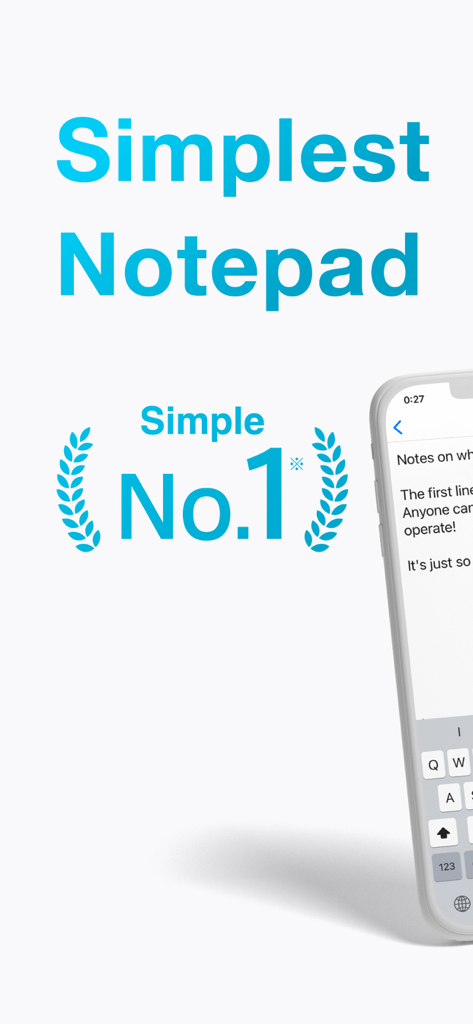
ミニマリストなインターフェースとシンプルさ第1位の評価を特徴とする、メモ帳アプリのプロモーション用グラフィック

ミニマリストなインターフェースとシンプルさ第1位の評価を特徴とする、メモ帳アプリのプロモーション用グラフィック

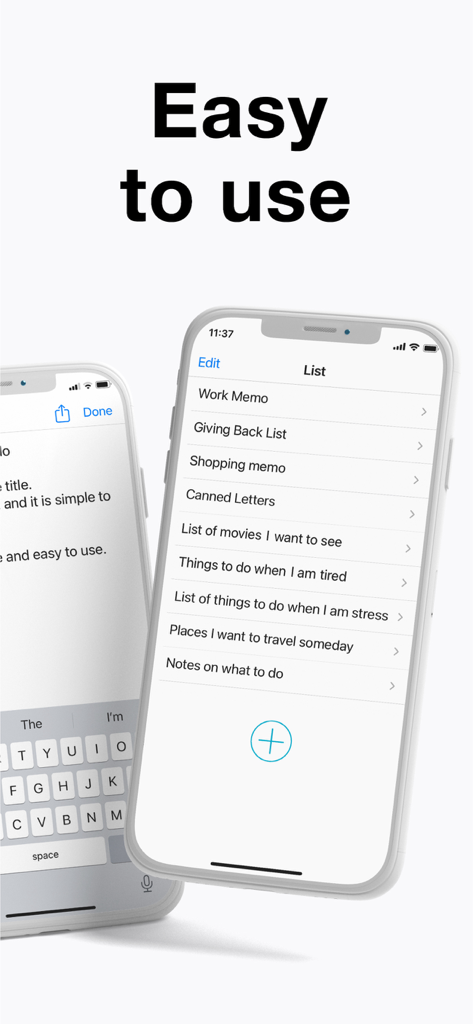
iPhone上のメモリストを表示しているシンプルなメモ帳アプリのインターフェース

iPhone上のメモリストを表示しているシンプルなメモ帳アプリのインターフェース

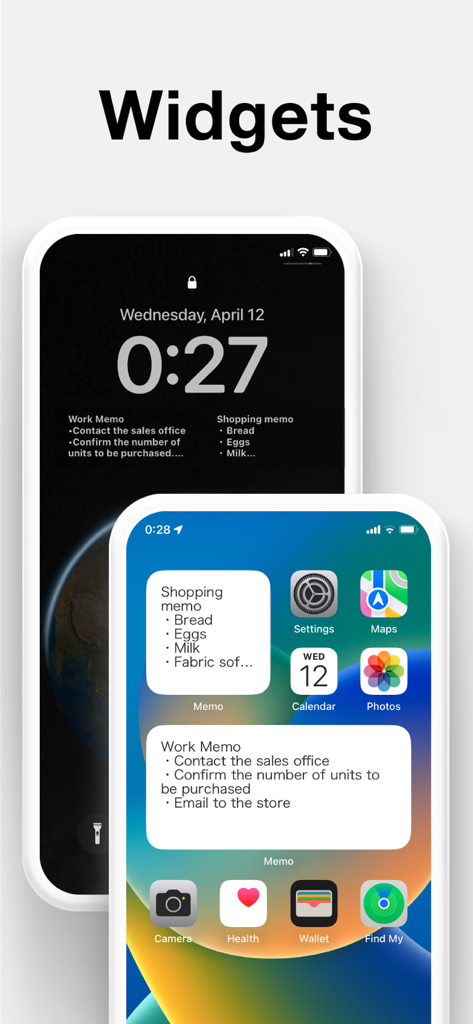
iOSのホーム画面とロック画面に配置された、買い物や仕事のメモ用メモ帳アプリウィジェット

iOSのホーム画面とロック画面に配置された、買い物や仕事のメモ用メモ帳アプリウィジェット

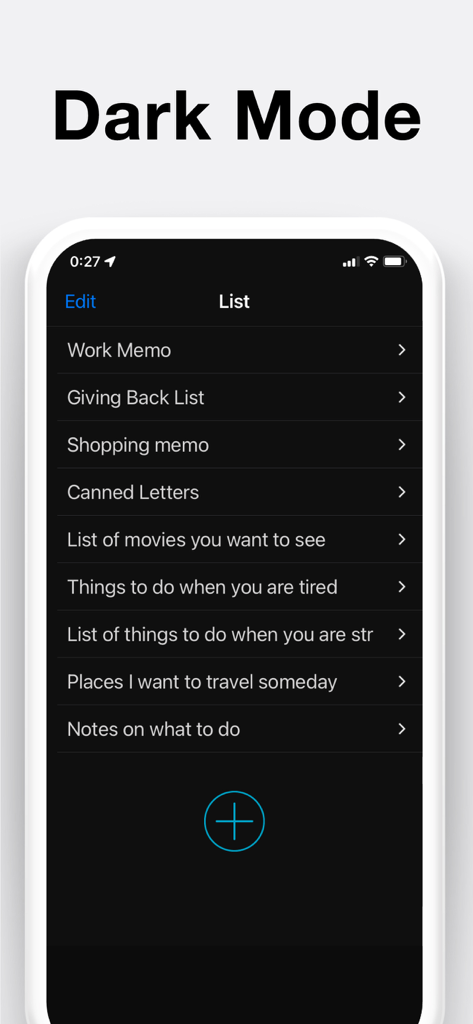
メモリストを表示しているダークモードのシンプルなメモ帳アプリインターフェース

メモリストを表示しているダークモードのシンプルなメモ帳アプリインターフェース

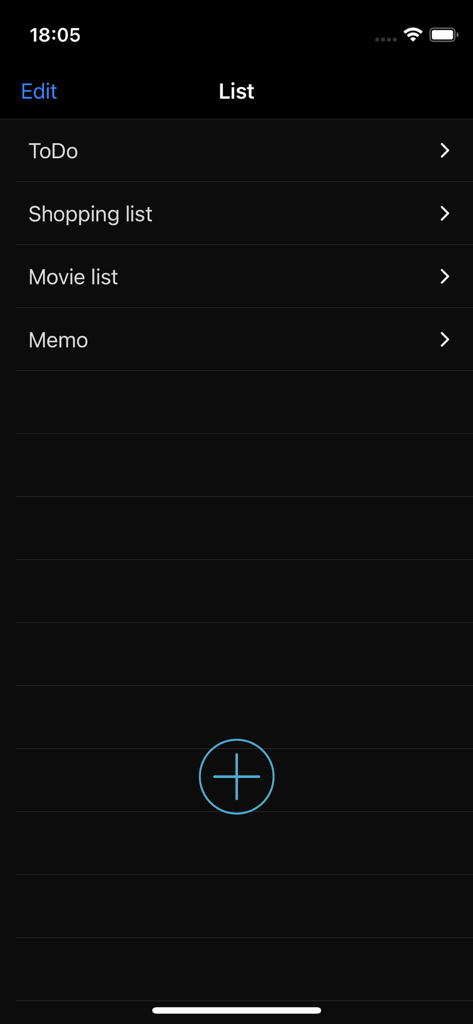
ダークモードでToDoや買い物リストなどのカテゴリを表示しているメモ帳アプリのメインリスト画面

ダークモードでToDoや買い物リストなどのカテゴリを表示しているメモ帳アプリのメインリスト画面

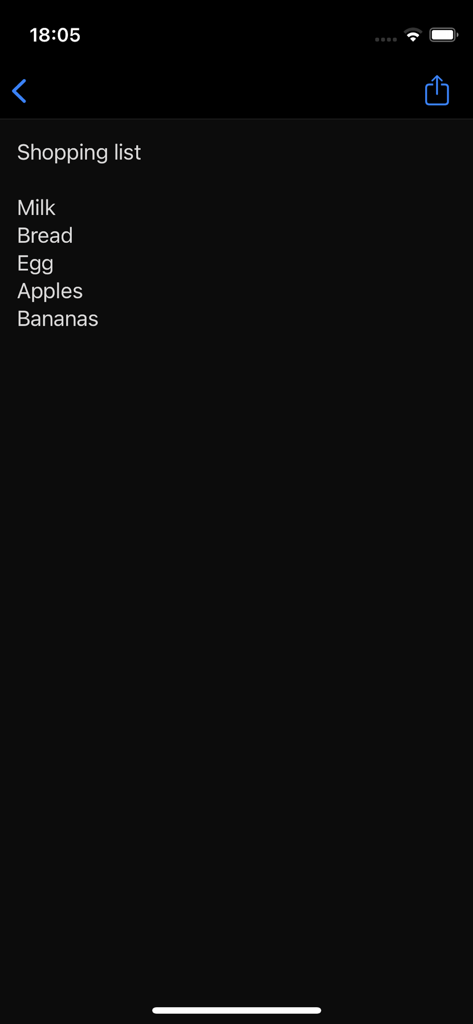
メモ帳アプリのダークモードインターフェース上のシンプルな買い物リスト

メモ帳アプリのダークモードインターフェース上のシンプルな買い物リスト

シンプルさのための設計、スピードのための構築

このアプリを際立たせるツール、 4M+ 人のユーザーが選択.

瞬時のクイック記録

ログイン不要、読み込み画面なし、摩擦なし。開いてすぐに入力するだけで、会議の議事録、買い物リスト、または突然のひらめきをすぐに記録できます。

📱

一目でわかるウィジェット

iPhoneのロックを解除しなくても整理された状態を維持。ロック画面とホーム画面のウィジェットを使用して、最も重要なタスクを常に前面に表示します。

🛡️

設計から守られるプライバシー

あなたのデータはデバイス内に留まります。メモを収集したり外部サーバーに送信したりすることはありません。あなたが求める心理的な安全性とプライバシーを提供します。

世界中のユーザーに愛されています

Trusted by 4M+ 人がこのアプリを愛用しています.

"

"買い物リストや家事を常にこなしている私にとって、このアプリは救世主です。ロック画面のウィジェットは画期的で、スマホのロックを解除しなくてもお店でリストを確認できます。シンプルで、不要な機能に圧倒されないところが気に入っています。"

サラ・ミラー
"

"ようやくプライバシーを尊重してくれるメモアプリに出会えました。データがデバイスから離れないという安心感が、他のアプリではなくこれを選んだ理由です。会議の議事録を作成するのも非常に速く、ダークモードも素晴らしいです。まさに物理的なメモ帳の完璧なデジタル版です。"

デイビッド・チェン

アプリについて

について知っておくべきこと Notepad - Simple Notes & Memo.

説明

Free! Easy to use and simple notepad app! ■ Features - Search - Dark mode - Lock screen widget with 4 font sizes - Home screen widget with 3 different sizes - Automatic note saving with the auto-save feature - Word count - Choose from 6 different colors to brighten up your notes (swipe right on the note) - Reorder your notes (press and hold the note to move it) ■ Usage - Easily enter your thoughts in the notepad - Make a shopping list - Make a To Do list - Temporarily save copy/paste items here - Draft reports, minutes, collections, and stories ■ FAQ ** How do I delete notes? Swipe left on the note to bring up the [Delete] button. Or tap the [Edit] button, then tap the red symbol to bring up the [Delete] button. ** How do I sort notes? Tap and hold the note you want to move, and then drag it up or down. Or tap the [Edit] button, then pinch the tab on the right of the note to move it. ** How do I add a note to my Lock Screen? (How do I set up a Lock Screen widget?) Please update your device to iOS 16 or later. Once you have updated, touch and hold the center of the Lock Screen until the [Customize] button appears at the bottom of the screen, then tap [Customize]. Select [Lock Screen], tap [Add Widgets], select this app, and then select the widget you want to use. If the name of this app is not displayed, restart your device to display it. ** How do I add a note to my Home Screen? (How do I set up a widget?) Tap and hold an empty area on your Home Screen, then tap the [+] button in the top-left corner. Select the [Notepad] widget in this app, select from three widget sizes, and then tap the [Add] button. You can add as many widgets as you like! To select a note to be displayed in the widget, tap and hold the widget on the Home Screen, then select the note you want to display from [Edit Widget] - [Notes]. ** How do I change the color of my notes? Change the color of your notes by swiping right. ** How do I display notes in the widget? Swipe right on your iPhone's Home Screen to display the widget screen. Press the [Edit] button at the bottom of the widget screen, then press the [+] symbol to allow the Notepad app to be displayed in the widget. ** What about data security? This app never collects or sends any text entered by the user to servers or any external sources outside the app. The only communication this app performs is related to advertising information. This app has been operating for over 10 years through advertising revenue and in-app purchases. All data entered by users is stored only within the app, so you can use it with confidence.

最新バージョン

4.0.2

サイズ

49.7 MB

リリース日

2015年7月14日

シンプルさを追求する400万人のユーザーの仲間入りをしましょう

忙しい生活のために設計された、プライベートでウィジェット対応のメモ帳。会員登録もクラウド追跡も不要。ロック画面からすぐにメモを取ることができます。

ダウンロード: App Storeダウンロード: Google Play
FAQ

よくある質問

について知っておくべきこと Notepad - Simple Notes & Memo
Notepad - Simple Notes & Memo でメモを削除するにはどうすればよいですか?

はい、Notepad - Simple Notes & Memo でメモを削除できます。メモを左にスワイプすると、削除ボタンが表示されます。または、「編集」ボタンをタップし、削除したいメモの横にある赤い記号をタップして削除ボタンにアクセスすることもできます。

Notepad - Simple Notes & Memo アプリでメモの順序を変更できますか?

はい、ユーザーは Notepad - Simple Notes & Memo でメモの順序を変更できます。メモを移動するには、長押ししてから上下にドラッグします。または、「編集」ボタンをタップし、メモの右側にあるタブをピンチして移動することもできます。

iOS 16 で Notepad - Simple Notes & Memo のロック画面ウィジェットを設定するにはどうすればよいですか?

iOS 16 で Notepad - Simple Notes & Memo のロック画面ウィジェットを設定するには、デバイスを iOS 16 以降にアップデートしてください。ロック画面を長押しし、「カスタマイズ」をタップし、「ロック画面」を選択し、「ウィジェットを追加」をタップし、このアプリを選択し、目的のウィジェットを選択します。

Notepad - Simple Notes & Memo アプリのホーム画面ウィジェットを追加するにはどうすればよいですか?

Notepad - Simple Notes & Memo のホーム画面ウィジェットを追加するには、ホーム画面の空いている領域を長押しし、[+] ボタンをタップします。Notepad ウィジェットを選択し、3 つのサイズから選択して、「追加」をタップします。複数のウィジェットを追加できます。

Notepad - Simple Notes & Memo でメモの色を変更するにはどうすればよいですか?

はい、ユーザーは Notepad - Simple Notes & Memo でメモの色を変更できます。メモを右にスワイプして、6 つの異なる色から選択します。この機能は、メモを明るくするのに役立ちます。

Notepad - Simple Notes & Memo ウィジェットに表示するメモを選択するにはどうすればよいですか?

Notepad - Simple Notes & Memo ホーム画面ウィジェットに表示する特定のメモを選択するには、ウィジェットを長押しします。次に、表示されるオプションの「ウィジェットを編集」->「メモ」から目的のメモを選択します。

Notepad - Simple Notes & Memo アプリのユーザーデータは安全ですか?

はい、Notepad - Simple Notes & Memo のユーザーデータは安全です。このアプリは、ユーザーが入力したテキストを外部サーバーやソースに収集または送信することはありません。すべてのユーザーデータは、アプリ自体内にのみ保存されます。

Notepad - Simple Notes & Memo アプリは無料で利用できますか?

はい、Notepad - Simple Notes & Memo アプリは無料で利用できます。広告を通じて収益を上げ、アプリ内購入も提供しています。

Notepad - Simple Notes & Memo はダークモードに対応していますか?

はい、Notepad - Simple Notes & Memo アプリはダークモードに対応しています。この機能は、ユーザーエクスペリエンスを向上させるためのコア機能の 1 つとしてリストされています。

Notepad - Simple Notes & Memo には自動保存機能がありますか?

はい、Notepad - Simple Notes & Memo には自動メモ保存機能が搭載されています。これにより、ユーザーの手動操作なしでメモが確実に保存されます。

Notepad - Simple Notes & Memo アプリは文字数カウントを提供しますか?

はい、Notepad - Simple Notes & Memo アプリには文字数カウント機能が含まれています。これにより、ユーザーはメモや作成中のドラフトの長さを追跡できます。