Microsoft Authenticator

Microsoft Authenticator

다운로드: App Store다운로드: Google Play
Spark by MWM logo
로고: Microsoft Authenticator

Microsoft Authenticator: 빠르고 안전하며 번거로움 없는 로그인

탭 한 번으로 MFA, 암호 없는 로그인, 안전한 자동 채우기로 직장 및 개인 계정을 보호하세요. 신뢰할 수 있는 보안으로 디지털 생활을 간소화하세요.

개발사

Microsoft Corporation

카테고리

Productivity

다운로드

-

사용자 평점

4.7/5

총 평가 수

-

지원 언어

42

한눈에 보는 보안

이 인터페이스를 사용하는 명의 사용자.

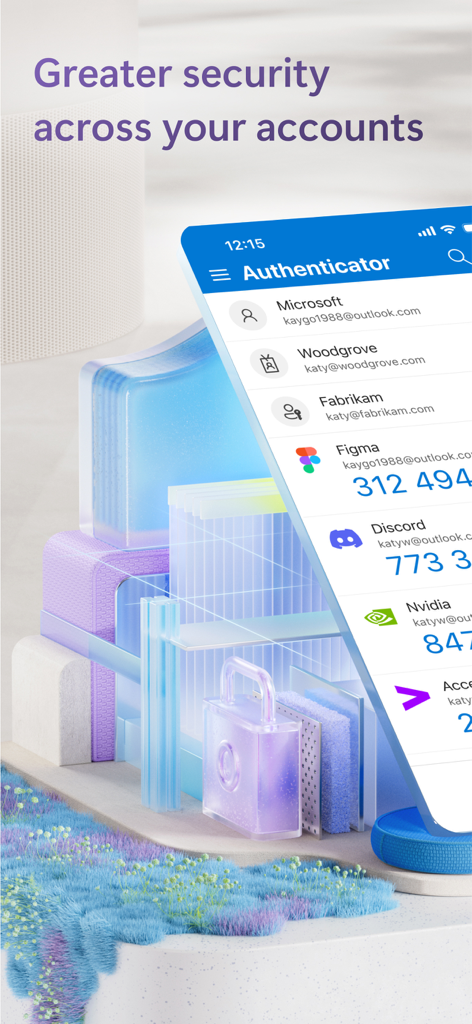
Microsoft Authenticator 앱 인터페이스에 여러 계정의 보안 코드가 표시됨

Microsoft Authenticator 앱 인터페이스에 여러 계정의 보안 코드가 표시됨

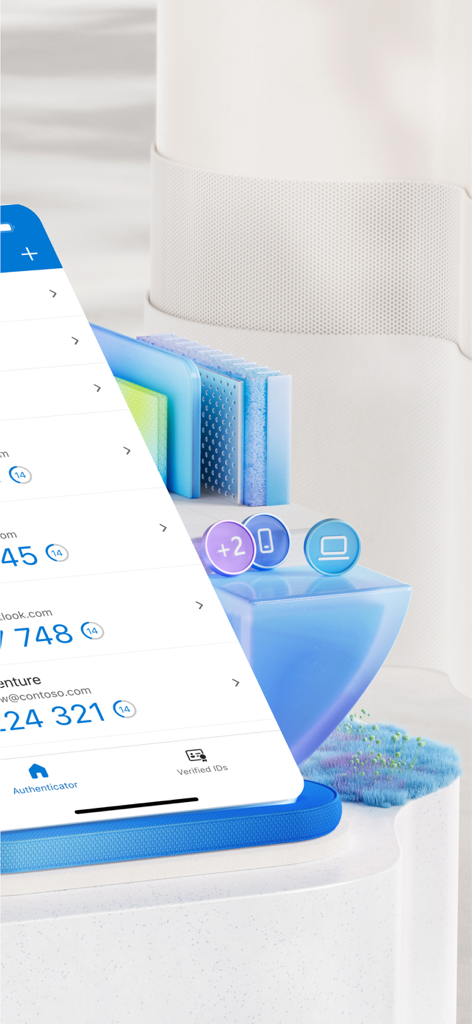
Microsoft Authenticator 앱 인터페이스에 다양한 계정의 일회용 비밀번호 목록이 표시됨

Microsoft Authenticator 앱 인터페이스에 다양한 계정의 일회용 비밀번호 목록이 표시됨

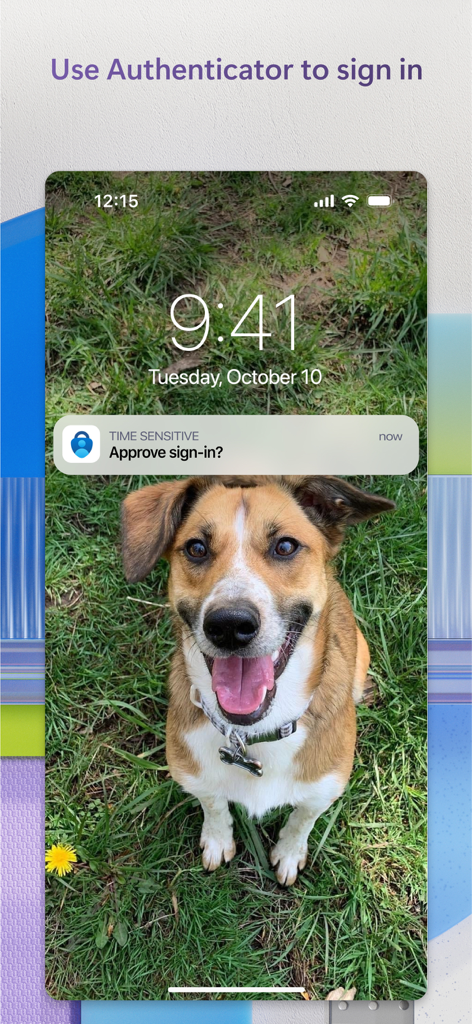
iPhone 잠금 화면에 표시되는 Microsoft Authenticator 푸시 알림, 로그인 승인 요청

iPhone 잠금 화면에 표시되는 Microsoft Authenticator 푸시 알림, 로그인 승인 요청

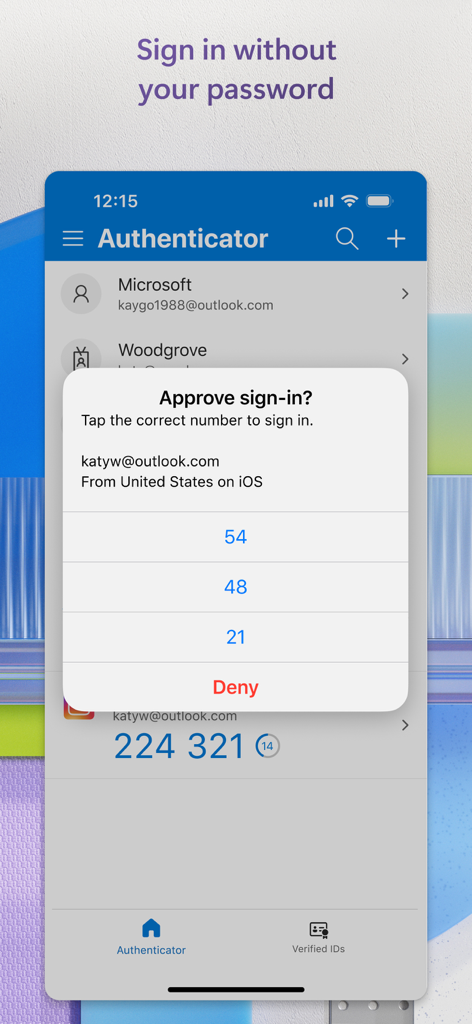
Microsoft Authenticator의 모바일 인터페이스, 보안 프롬프트와 일치하는 숫자가 있는 로그인 승인 요청 표시

Microsoft Authenticator의 모바일 인터페이스, 보안 프롬프트와 일치하는 숫자가 있는 로그인 승인 요청 표시

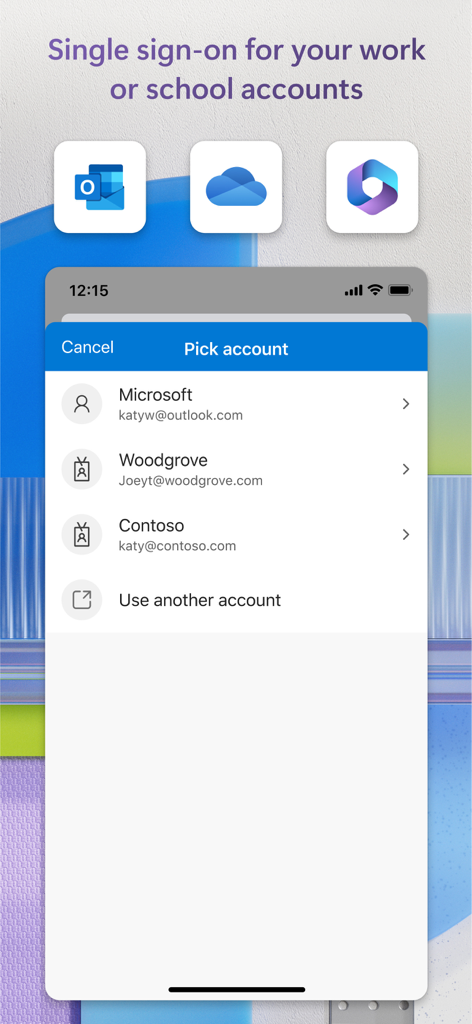
Microsoft Authenticator 인터페이스, 직장 및 학교 계정으로 단일 로그인(SSO)을 위한 계정 선택 표시

Microsoft Authenticator 인터페이스, 직장 및 학교 계정으로 단일 로그인(SSO)을 위한 계정 선택 표시

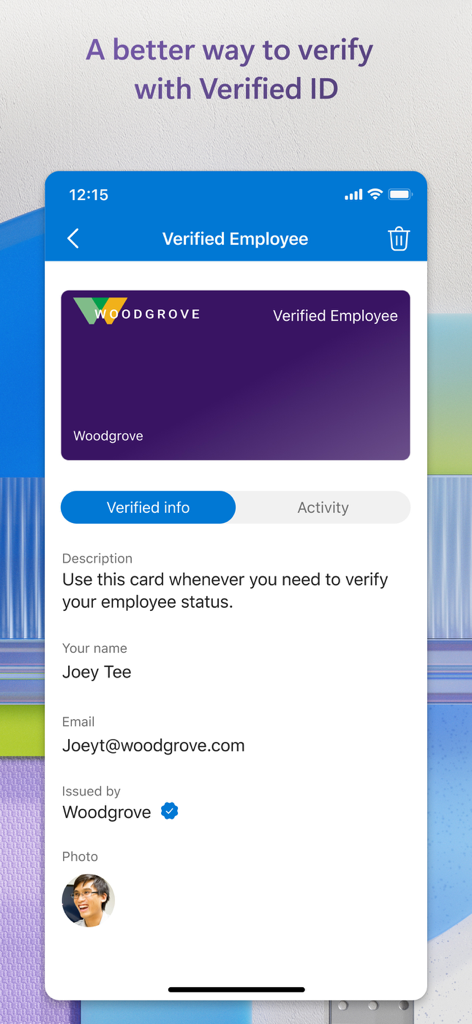
Microsoft Authenticator 앱의 디지털 직원 ID 카드

Microsoft Authenticator 앱의 디지털 직원 ID 카드

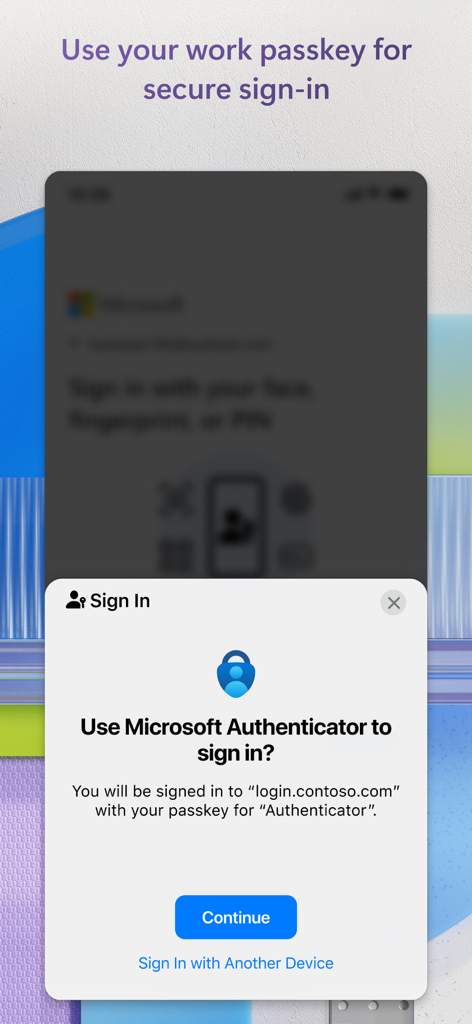
Microsoft Authenticator 앱에서 보안 액세스를 위해 직장 암호 키 사용을 요청하는 로그인 프롬프트가 표시되는 모바일 화면.

Microsoft Authenticator 앱에서 보안 액세스를 위해 직장 암호 키 사용을 요청하는 로그인 프롬프트가 표시되는 모바일 화면.

간편하고 철통같은 보안

이 앱을 돋보이게 하는 도구, 명의 사용자가 선택.

탭 한 번으로 로그인

수동 코드 입력은 건너뛰세요. 지문이나 FaceID를 사용하여 간단한 푸시 알림으로 즉시 인증하세요.

🛡️

암호 없이 사용

스마트폰을 기본 디지털 키로 사용하여 보안의 미래를 경험하세요. 더 이상 잊어버린 암호는 없습니다.

🚀

안전한 자동 채우기

기업 등급 암호화로 모든 모바일 앱 및 브라우저에서 자격 증명을 즉시 동기화하고 채우세요.

전 세계 사용자들에게 사랑받는 앱

Trusted by 명이 이 앱을 사랑합니다.

"

"직장과 개인 계정을 계속 전환하는 프로젝트 관리자로서 이 앱은 생명의 은인입니다. 탭 한 번으로 승인하는 푸시 알림은 코드를 입력하는 것보다 훨씬 시간을 절약해 줍니다. 업무에 방해를 주지 않으면서 데이터를 안전하게 유지하는 가장 매끄러운 방법입니다."

Sarah J.
"

"처음에는 대학 포털을 위해 다운로드했지만 이제 모든 것에 사용하고 있습니다. 암호 자동 채우기가 매우 안정적이며 FaceID로 계정이 보호된다는 사실에 안심이 됩니다. 디지털 생활을 훨씬 간소화했습니다."

Marcus L.

리뷰 분석

사용자 리뷰 인사이트.

감정 점수

30%
부정적

요약

The Microsoft Authenticator app receives overwhelmingly negative feedback, primarily due to significant usability issues. Users frequently encounter frustrating login loops, where the app requires verification from itself, and experience substantial difficulties when transferring accounts to new devices or recovering lost data, often leading to being locked out of essential services like Teams and email. A recurring complaint highlights the absence of robust account backup/restore and password export capabilities. However, some users commend the app for its general functionality, security, and occasional seamless migration during iPhone upgrades.

주요 테마

General App Performance(4)
Reliable Access(2)
Security & Speed(1)
Seamless Device Migration(1)
Core Functionality Focus(1)

앱 소개

에 대해 알아야 할 모든 것 Microsoft Authenticator.

설명

Use Microsoft Authenticator for easy, secure sign-ins for all your online accounts using multi-factor authentication, passwordless, or password autofill. You also have additional account management options for your Microsoft personal, work or school accounts. Getting started with multi-factor authentication Multi factor authentication (MFA)provides a second layer of security. When enabled, during login after entering your password, you’ll be asked for an additional way to prove it’s really you. Either approve the notification sent to the Microsoft Authenticator, or enter the one-time password (OTP) generated by the app. The OTP codes have a 30 second timer counting down. This timer is so you never have to use the same time-based one-time password (TOTP) twice and you don’t have to remember the number. The OTP doesn’t require you to be connected to a network, and it won’t drain your battery. You can add multiple accounts to your app, including non-Microsoft accounts like Facebook, Amazon, Dropbox, Google, LinkedIn, GitHub, and more. Getting started with passwordless Use your phone, not your password, to log into your Microsoft account. Just enter your username, then approve the notification sent to your phone. Your fingerprint, face ID, or PIN will provide a second layer of security in this two-step verification process. After you’ve signed in with two factor authentication (2FA), you’ll have access to all your Microsoft products and services, such as Outlook, OneDrive, Office, and more. Getting started with autofill Microsoft Authenticator app can also autofill passwords for you. Sign-in on the Passwords tab inside the Authenticator app with your personal Microsoft account to start syncing passwords, including the passwords saved in Microsoft Edge. Make Microsoft Authenticator the default autofill provider and start autofilling passwords on apps and sites you visit on your mobile. Your passwords are protected with multi-factor authentication in the app. You will need to prove yourself with your fingerprint, face ID, or PIN to access and autofill passwords on your mobile. You can also import passwords from Google Chrome and other password managers. Microsoft personal, work or school accounts Sometimes your work or school might ask you to install the Microsoft Authenticator when accessing certain organization resources. You will need to register your device to your organization through the app and add your work or school account. Microsoft Authenticator supports cert-based authentication by issuing a certificate on your device. This will let your organization know that the sign-in request is coming from a trusted device and help you seamlessly and securely access additional Microsoft apps and services without needing to log into each.

최신 버전

6.8.40

크기

139.6 MB

출시일

2015년 5월 30일

탭 한 번으로 당신의 세상을 보호하세요

모든 개인 및 직장 계정에 대한 암호 없는 로그인과 안전한 자동 채우기로 디지털 생활을 간소화하는 수백만 명의 전문가 및 학생들과 함께하세요.

다운로드: App Store다운로드: Google Play
FAQ

자주 묻는 질문

에 대해 알아야 할 모든 것 Microsoft Authenticator

Microsoft Authenticator는 무엇에 사용되나요?

Microsoft Authenticator는 다단계 인증, 암호 없는 로그인 또는 암호 자동 채우기를 사용하여 온라인 계정에 쉽게 로그인할 수 있도록 합니다. 또한 Microsoft 개인, 회사 또는 학교 계정에 대한 계정 관리 기능도 제공합니다.

Microsoft Authenticator는 다단계 인증을 지원하나요?

예, Microsoft Authenticator는 다단계 인증(MFA)을 제공합니다. 암호를 입력한 후 앱에서 생성된 알림 승인 또는 일회용 비밀번호(OTP) 입력을 요구하여 두 번째 보안 계층을 제공합니다.

Microsoft Authenticator의 다단계 인증은 어떻게 작동하나요?

Microsoft Authenticator의 다단계 인증은 승인을 위해 알림을 보내거나 시간 기반 일회용 비밀번호(OTP)를 생성하여 작동합니다. 사용자는 알림을 승인하거나 30초 타이머가 있는 OTP를 입력합니다.

Microsoft Authenticator를 Microsoft 계정이 아닌 다른 계정에도 사용할 수 있나요?

예, Microsoft Authenticator는 Facebook, Amazon, Dropbox, Google, LinkedIn, GitHub 등 Microsoft 계정이 아닌 여러 계정을 추가하는 것을 지원합니다.

Microsoft Authenticator는 암호 없는 로그인을 제공하나요?

예, Microsoft Authenticator는 Microsoft 계정에 대한 암호 없는 로그인을 지원합니다. 사용자는 사용자 이름을 입력한 다음 지문, Face ID 또는 PIN을 사용하여 휴대폰의 알림을 승인하여 인증합니다.

Microsoft Authenticator의 암호 없는 로그인은 어떻게 작동하나요?

Microsoft Authenticator를 사용한 암호 없는 로그인은 Microsoft 계정의 사용자 이름을 입력해야 합니다. 앱은 휴대폰으로 알림을 보내고, 사용자는 지문, Face ID 또는 PIN을 사용하여 승인하여 두 번째 보안 계층을 제공합니다.

Microsoft Authenticator에서 암호를 자동으로 채울 수 있나요?

예, Microsoft Authenticator는 암호를 자동으로 채울 수 있습니다. 사용자는 개인 Microsoft 계정으로 암호 탭에 로그인하여 Microsoft Edge의 암호를 포함하여 동기화할 수 있으며, 기본 자동 채우기 공급자로 설정할 수 있습니다.

Microsoft Authenticator의 암호 자동 채우기는 안전한가요?

예, Microsoft Authenticator의 암호 자동 채우기는 안전합니다. 암호는 다단계 인증으로 보호되며, 모바일 장치에서 암호에 액세스하고 자동으로 채우려면 지문, Face ID 또는 PIN 인증이 필요합니다.

Microsoft Authenticator로 암호를 가져올 수 있나요?

예, Microsoft Authenticator는 사용자가 암호를 가져올 수 있도록 합니다. Google Chrome 및 기타 암호 관리자에서 암호를 가져오는 것을 지원합니다.

Microsoft Authenticator는 회사 또는 학교 계정을 어떻게 지원하나요?

Microsoft Authenticator는 장치를 조직 리소스에 등록할 수 있도록 하여 회사 또는 학교 계정을 지원합니다. 별도의 로그인 없이 Microsoft 앱 및 서비스에 원활하고 안전하게 액세스할 수 있도록 인증서 기반 인증을 제공합니다.

Microsoft Authenticator 앱이 배터리를 소모하거나 OTP에 네트워크 연결이 필요한가요?

아니요, Microsoft Authenticator 앱은 일회용 비밀번호(OTP) 기능을 위해 배터리를 소모하거나 네트워크 연결이 필요하지 않습니다. OTP 코드는 시간 기반이며 오프라인에서도 작동합니다.