
Citrix Workspace



Securely access all your business apps, virtual desktops, and files from your iPhone or iPad. Stay productive with a seamless experience tailored for the modern corporate professional.
Publisher
Category
BusinessDownloads
5M+User Rating
Total Ratings
19K+Locales
12Discover the interface used by 5M+ users.
The tools that make this app stand out, trusted by 5M+ users.
Run mission-critical Windows and legacy applications on your iPhone or iPad with a high-performance experience that feels native.
Access sensitive corporate data through a secure container, providing peace of mind and compliance without the hassle of clunky VPNs.
Start a task at your desk and finish it on your commute. Your active sessions follow you across devices so you never lose your progress.
Trusted by 5M+ people who love this app.
"Citrix Workspace is a game-changer for my hybrid workflow. I can seamlessly switch from my office PC to my iPad Pro while commuting, keeping all my apps and files exactly where I left them. It's the ultimate tool for staying productive without being tethered to a desk."
"Security is my top priority, and Citrix delivers without the usual VPN headaches. I can securely access our firm's internal legacy software and sensitive documents from my iPhone, allowing me to provide urgent updates to clients no matter where I am."
Insights from user reviews.
Sentiment Score
Summary
The Citrix Workspace app is currently receiving predominantly negative feedback, largely due to a series of critical bugs and regressions following recent updates. Users widely report that the essential pinch-to-zoom functionality is broken on mobile devices, rendering the app unusable for many, with specific issues noted on iPhone 17, iPadOS 26, iOS 18.2, and iOS 18.4.1. The application also suffers from frequent crashes, freezing, and unreliable login processes, hindering productivity. While some users acknowledge its core utility for remote access to company portals and general work-related tasks, the app's current instability and usability issues are causing significant frustration.
Common Themes
Everything you need to know about Citrix Workspace.
Description
Latest Version
25.9.0
Size
109.0 MB
First Released
Apr 1, 2010
Empower your hybrid lifestyle with secure, instant access to all your professional apps and data. Join millions of executives working smarter on the go.
Everything you need to know about Citrix Workspace
Citrix Workspace app provides secure access to SaaS, web, mobile, and virtual applications, files, and desktops. It enables users to work productively from any device, anywhere, by connecting to their company's resources.
To get started with the Citrix Workspace app, open it and tap 'Get Started'. Then, enter the server or email address, your username, and password as provided by your IT department.
Yes, you can add multiple accounts in the Citrix Workspace app. Navigate to 'Settings' and then tap on 'Manage Accounts' to add additional accounts to the application.
To report an issue from the Citrix Workspace app, go to 'Settings', then 'Report Issue'. Configure advanced logging, describe the problem, and share the generated log file via email to your company's IT support team.
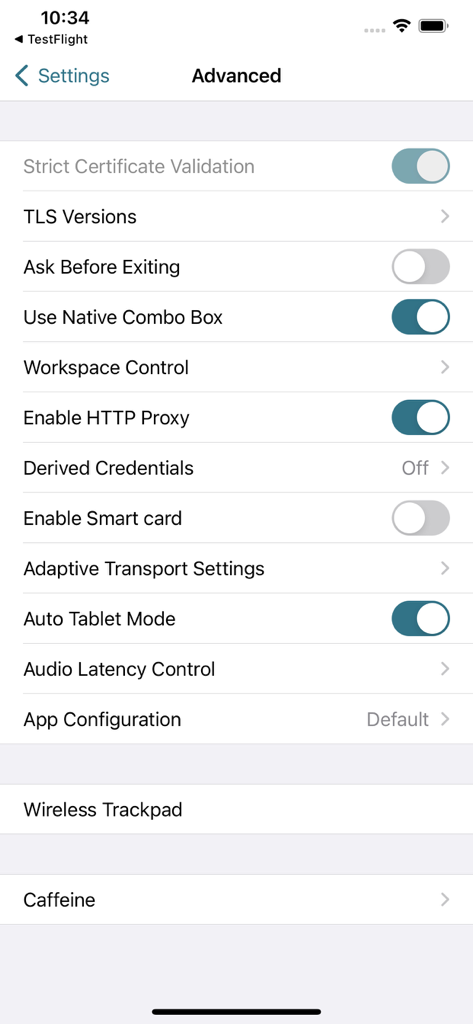
The Citrix Workspace app includes advanced settings such as Strict Certificate Validation, TLS Versions, Workspace Control, Enable HTTP Proxy, and options for Smart card and Adaptive Transport.
Yes, the Citrix Workspace app supports smart card authentication. Users can enable the 'Enable Smart card' option within the advanced settings to utilize this security feature.
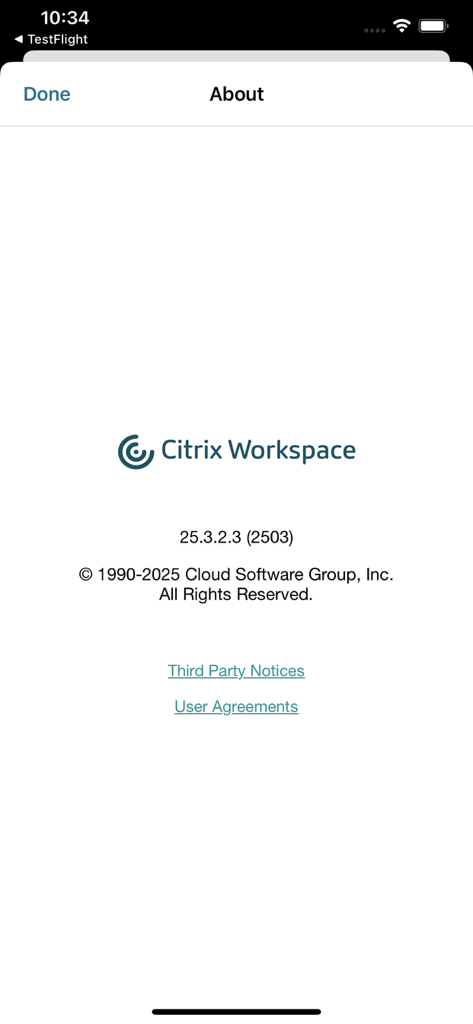
The Citrix Workspace app version shown is 25.3.2.3 (2503). It is copyrighted by Cloud Software Group, Inc. from 1990-2025.
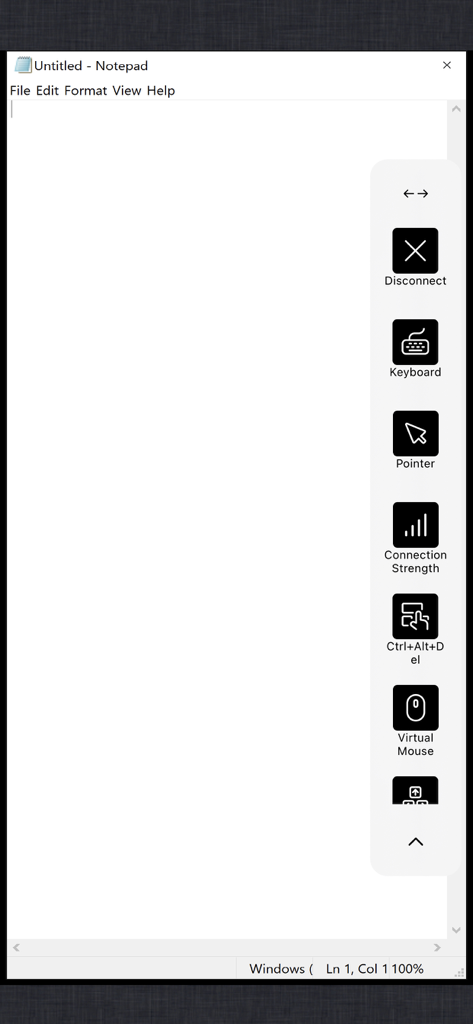
Users can access a virtual mouse and keyboard within a session using the on-screen controls. These controls also provide options to disconnect, check connection strength, and send Ctrl+Alt+Del commands.
Apps with similar features and user experience

Shanghai best oray information s&t co.,ltd

Guangzhou NetEase Computer System Co.Ltd

AWERAY PTE. LTD.

AnyDesk Software GmbH

TeamViewer Germany GmbH

Hainan Youqu Technology Co., Ltd.

ZULER TECHNOLOGY PTE. LTD.

Termius Corporation

RealVNC Limited