spacedesk - USB Display for PC

spacedesk - USB Display for PC

다운로드: App Store다운로드: Google Play
Spark by MWM logo
로고: spacedesk - USB Display for PC

spacedesk: Windows PC를 위한 최고의 멀티 모니터 솔루션

iPad 또는 iPhone을 고성능 보조 디스플레이나 전문 드로잉 태블릿으로 바꿔보세요. 추가 하드웨어 없이 USB 또는 Wi-Fi 연결을 통해 지연 없는 환경에서 생산성을 극대화할 수 있습니다.

개발사

datronicsoft Technology GmbH

카테고리

Productivity

다운로드

3M+

사용자 평점

4.7/5

총 평가 수

13K+

지원 언어

4

확장된 당신의 작업 공간

이 인터페이스를 사용하는 3M+ 명의 사용자.

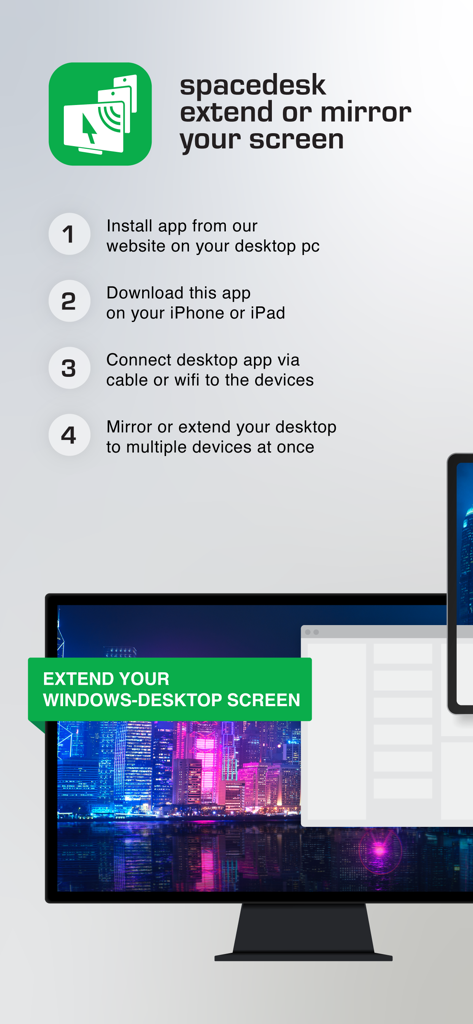
spacedesk를 사용하여 Windows 데스크톱 화면을 iOS 기기로 확장하거나 미러링하는 4단계 과정

spacedesk를 사용하여 Windows 데스크톱 화면을 iOS 기기로 확장하거나 미러링하는 4단계 과정

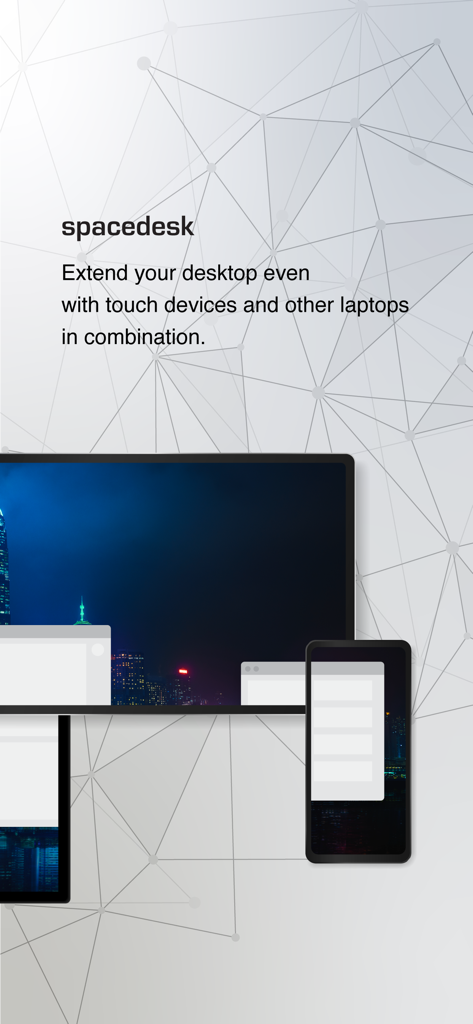
컴퓨터 데스크톱을 태블릿과 휴대폰으로 확장하는 spacedesk 앱

컴퓨터 데스크톱을 태블릿과 휴대폰으로 확장하는 spacedesk 앱

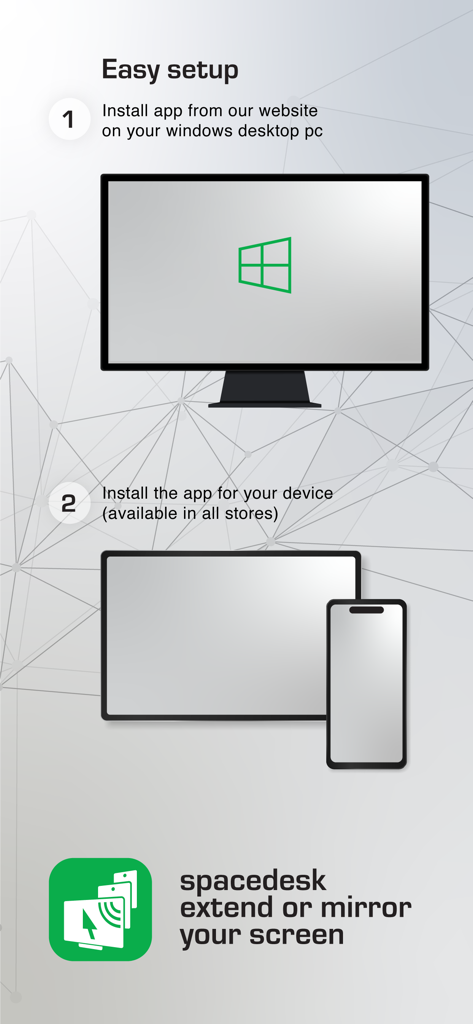
Windows PC 및 모바일 기기용 spacedesk 설정을 위한 단계별 지침

Windows PC 및 모바일 기기용 spacedesk 설정을 위한 단계별 지침

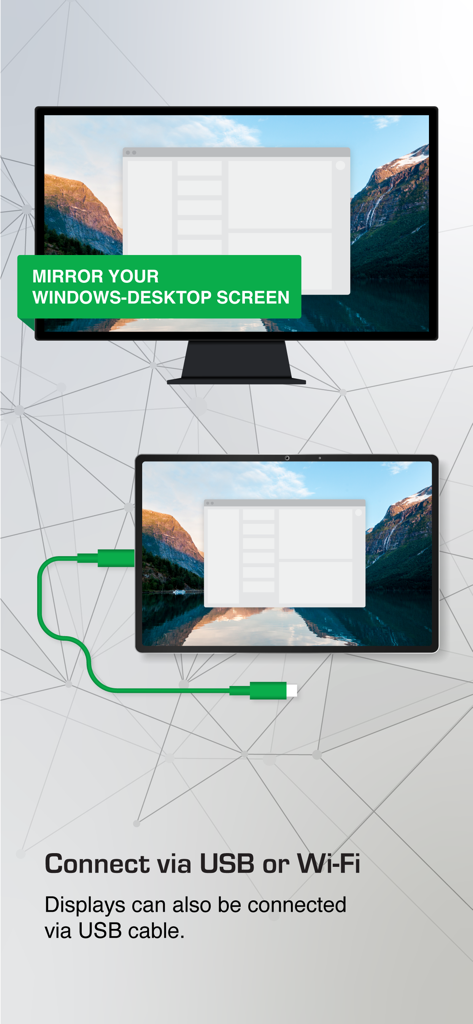
USB를 통한 Windows PC에서 태블릿으로의 spacedesk 화면 미러링

USB를 통한 Windows PC에서 태블릿으로의 spacedesk 화면 미러링

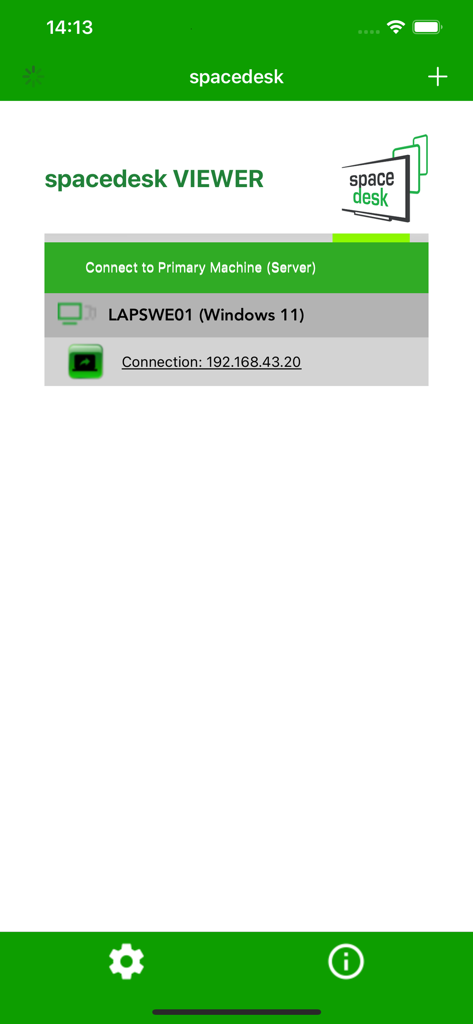
사용 가능한 Windows 11 기본 컴퓨터 연결을 보여주는 spacedesk 뷰어 앱 인터페이스

사용 가능한 Windows 11 기본 컴퓨터 연결을 보여주는 spacedesk 뷰어 앱 인터페이스

추가 하드웨어 없이 작업 공간 업그레이드

이 앱을 돋보이게 하는 도구, 3M+ 명의 사용자가 선택.

🖥️

Windows에서 경험하는 Sidecar

Apple 생태계를 벗어나세요. iPad를 Windows 데스크톱의 원활한 확장 모니터로 활용하여 원하던 듀얼 모니터 생산성을 누릴 수 있습니다.

🎨

전문가급 디지털 일러스트레이션

iPad와 Apple Pencil을 필압 감지가 가능한 Windows 드로잉 태블릿으로 활용하세요. 추가 비용 없이 Photoshop이나 GIMP에서 스케치, 채색 및 디자인 작업을 할 수 있습니다.

지연 없는 유선 연결

번개처럼 빠른 성능과 선명한 화질을 위해 USB 또는 LAN으로 연결하세요. 파워 유저, 게이머, 그리고 원격 전문가에게 적합합니다.

전 세계 사용자들에게 사랑받는 앱

Trusted by 3M+ 명이 이 앱을 사랑합니다.

"

"출장이 잦은 소프트웨어 개발자로서 Windows 노트북에 보조 모니터가 없어 아쉬울 때가 많았습니다. spacedesk는 USB를 통해 지연 없이 제 iPad를 완벽한 확장 모니터로 만들어 주었습니다. 제가 기다려온 Windows용 'Sidecar' 그 자체입니다."

Alex R., 시니어 개발자
"

"디자인 수업을 위해 드로잉 태블릿이 필요했지만 새 장비에 수십만 원을 쓰고 싶지는 않았습니다. spacedesk 덕분에 제 Apple Pencil과 iPad를 Windows Photoshop에서 완벽하게 사용할 수 있게 되었습니다. 필압 감지도 정확하고 설정도 정말 간편했습니다!"

Maya S., 그래픽 디자인 전공 학생

앱 소개

에 대해 알아야 할 모든 것 spacedesk - USB Display for PC.

설명

Windows computer desktop extension, mirroring and remoting tool for WiFi, USB or LAN. Supports applications like: - Screen Cast (to television, tablet or smart phone) - Desktop Remoting Viewer (over USB and Local Area Network) - Drawing Tablet (drawing and painting with digitizer pen) - Wireless Display Monitor (similar to Miracast, RDP, AirPlay and Sidecar) - USB Display Monitor (similar to DisplayLink) - Remote Access (over USB link, WiFi and LAN) - Remote Control (wireless and wired) - Screen Streaming (including audio) - Screen Mirroring (over the air and via cable) - Screen Cloning - Extension Screen - Windows Desktop Workspace Extension - Windows Desktop Duplication (clone) - Windows Desktop Streaming - Personal Computer Desktop Presenter - Virtual Monitor for Desktop PC - Second Display On The Go - TV, mobile or tablet screen as Side by Side Display - Alternative to Miracast, AirPlay and Sidecar - Portable Multimonitor Screen for Travel - Access main computer from mobile device - Software KVM-Switch (Keyboard Video Mouse) - Software Display Hub - Software Display Switch - Projector Screen Viewer - Input Console - Input Terminal - Tablet Input Device - Windows Graphics Tablet App - Windows Tablet as sketchbook for drawing artwork - Creative Video Wall App - Video Wall w. Any Angle Rotation Instruction manual, documentation and detailed setup: https://manual.spacedesk.net Quick Guide: 1. Install spacedesk DRIVER software for Windows Primary PC. Download from: https://www.spacedesk.net 2. Install this spacedesk Viewer app for iOS. 3. Open this spacedesk Viewer app and connect to Windows Primary PC. Connection: USB or LAN (Local Area Network). LAN: Driver and Viewer must be on the same network - via Mobile Hotspot Note: Does NOT need internet connection! The Windows Primary Machine running spacedesk Driver... ...supports Windows 11, Windows 10 or Windows 8.1. Apple Macs are not supported. Dual monitor and multi monitor configurations are supported. Needs spacedesk drivers installed. Download: https://www.spacedesk.net The Secondary Machine or Device (iOS network display client)... ...is an iPad, iPhone or device running the spacedesk iOS app. The wireless and wired cable connection... ...connects Windows Primary Machine to Secondary Machine or Device over USB, LAN (Local Area Network e.g. Ethernet) and/or WLAN (Wireless Local Area Network). Local Area Network connection can be wired or over WiFi. TCP/IP network protocol is required. More information on: https://www.spacedesk.net Instruction Manual: https://manual.spacedesk.net/ Support Forum: https://forum.spacedesk.net/ Facebook: https://www.facebook.com/pages/spacedesk/330909083726073 Youtube: https://www.youtube.com/watch?v=YkWZSwBD-XY — LIGHTNING FAST — To achieve unparalleled performance and display quality with zero lag, use cable connection over USB or Local Area Network. Try to circumvent WiFi and network routers. E.g. configure Windows PC or iOS device as WiFi Access Point (Hotspot) and connect directly before connecting spacedesk. Please check chapter "Performance Tuning" in the instruction manual: https://manual.spacedesk.net — REMOTE CONTROL INPUT AND OUTPUT PERIPHERAL ACCESSORIES — - Touchscreen (multitouch and single touch - Touchpad - Mouse Pointer Control - Keyboard - Pressure Sensitive Stylus Pen - Audio Speaker — SETTINGS AND OPTIONS — - Landscape View - Portrait View — SYSTEM SUPPORT — Supported are iOS versions 11.x+ (including MacOS on Apple Silicon Chips) and PCs with Windows 11, Windows 10 and Windows 8.1. Apple Macs are not supported.

최신 버전

2.1.3

크기

16.7 MB

출시일

2018년 1월 5일

작업 공간을 확장할 준비가 되셨나요?

300만 명 이상의 사용자와 함께 iPad 또는 iPhone을 Windows PC용 고성능 보조 화면으로 변환해 보세요. 추가 하드웨어 없이도 필요한 데스크톱 공간을 확보할 수 있습니다.

다운로드: App Store다운로드: Google Play
FAQ

자주 묻는 질문

에 대해 알아야 할 모든 것 spacedesk - USB Display for PC
spacedesk란 무엇인가요?

spacedesk는 Windows 컴퓨터 데스크톱을 확장, 복제 및 원격 제어하는 도구로, iOS 장치를 고급 보조 디스플레이로 전환합니다. 화면 캐스팅 및 원격 제어와 같은 다양한 응용 프로그램을 지원합니다.

Windows PC 및 iOS 장치에 spacedesk를 설정하는 방법은 무엇인가요?

spacedesk를 설정하려면 먼저 Windows PC에 spacedesk DRIVER 소프트웨어를 설치하십시오. 그런 다음 iOS 장치에 spacedesk Viewer 앱을 설치하십시오. 마지막으로 Viewer 앱을 열고 Windows 기본 PC에 연결하십시오.

spacedesk 기본 컴퓨터는 어떤 운영 체제를 지원하나요?

spacedesk 기본 컴퓨터는 Windows 11, Windows 10 및 Windows 8.1을 지원합니다. Apple Mac은 spacedesk 드라이버 소프트웨어의 기본 컴퓨터로 지원되지 않습니다.

iPhone 또는 iPad를 spacedesk의 보조 디스플레이로 사용할 수 있나요?

예, iPad, iPhone 또는 spacedesk iOS 앱을 실행하는 모든 장치를 Windows 데스크톱을 확장하거나 복제하는 보조 컴퓨터 또는 장치로 사용할 수 있습니다.

데스크톱을 확장하기 위해 spacedesk에 인터넷 연결이 필요한가요?

아니요, spacedesk는 작동을 위해 인터넷 연결이 필요하지 않습니다. 드라이버와 뷰어가 동일한 로컬 네트워크에 있으면 USB, LAN 또는 WLAN을 통해 연결됩니다.

spacedesk는 디스플레이 확장을 위해 어떤 연결 유형을 지원하나요?

spacedesk는 USB, LAN(이더넷 포함) 및 WLAN(무선 근거리 통신망)을 통한 연결을 지원합니다. 네트워크 연결에는 TCP/IP 네트워크 프로토콜이 필요합니다.

Windows PC의 원격 액세스 및 제어를 위해 spacedesk를 사용할 수 있나요?

예, spacedesk는 USB, WiFi 및 LAN을 통한 원격 액세스를 제공합니다. 또한 터치스크린, 터치패드, 마우스, 키보드 및 압력 감지 스타일러스 입력을 포함한 원격 제어 기능을 제공합니다.

spacedesk는 Apple Mac을 기본 컴퓨터로 지원하나요?

아니요, spacedesk는 Apple Mac을 기본 컴퓨터로 지원하지 않습니다. spacedesk 드라이버를 실행하는 기본 컴퓨터는 Windows 11, 10 또는 8.1이 설치된 Windows PC여야 합니다.

spacedesk를 사용하여 iOS 장치를 Windows용 드로잉 태블릿으로 전환할 수 있나요?

예, spacedesk를 사용하면 iOS 태블릿을 드로잉 태블릿으로 사용하여 압력 감지 스타일러스 펜으로 Windows PC에 직접 그림을 그리거나 페인트할 수 있습니다.

지연을 피하기 위해 spacedesk의 최적 성능을 어떻게 달성할 수 있나요?

최적의 성능과 지연 없는 spacedesk 경험을 얻으려면 USB 또는 근거리 통신망을 통한 유선 연결을 사용하십시오. Windows PC 또는 iOS 장치를 WiFi 액세스 포인트로 구성하여 직접 연결하는 것도 도움이 됩니다.